
12 WordPress Best Practices for Efficient Site Management
Managing a WordPress site has become increasingly complex — pretty much like everything else in the modern world! The platform now powers over 43% of the internet, but as the number of installations has grown, so have the hurdles. Security vulnerabilities, performance optimization, and maintaining numerous plugins are all time-intensive issues that can easily get…
By: Stellar Team · Published: April 9, 2025 · Updated: April 3, 2025
Managing a WordPress site has become increasingly complex — pretty much like everything else in the modern world! The platform now powers over 43% of the internet, but as the number of installations has grown, so have the hurdles. Security vulnerabilities, performance optimization, and maintaining numerous plugins are all time-intensive issues that can easily get in the way of growing your business. Those overseeing multiple client websites can multiply these challenges tenfold!
This article provides a comprehensive approach to overcoming such problems by outlining best practices in security implementations, plugin management, testing procedures, and performance optimization techniques. With these strategies, you can transform site management from a daunting task into a streamlined process, freeing up time for your expansion plans.
Key points
Security best practices for professional WordPress development
Safeguarding your WordPress installations is a no-brainer, especially when managing multiple sites at scale. Bag these basic best practices and you’ll establish a firm foundation for site-wide protection:
- Ensure that your WordPress core, themes, and plugins are updated and patch any security vulnerabilities promptly.
- Use unique passwords, enable Two-Factor Authentication (2FA), limit login attempts, and change the default admin username.
- Configure a Web Application Firewall (WAF) and download a security plugin like Solid Security Pro to monitor threats and filter malicious traffic.
- Secure your WordPress configuration by installing an SSL certificate, disabling file editing, changing the database prefix, and setting proper file permissions.
- Manage user permissions by adopting the principle of least privilege to limit access levels and log user activity.
- Regularly back up your files and database, storing them off-site while testing restorations periodically.
- Choose a reputable hosting provider with built-in security features, and consider using Cloudflare for DNS management to bolster your defenses against threats before they reach your site.
Once you’ve got the security basics down, it’s time to take it to the next level!
1. Advanced server-side security configurations
Implementing these advanced server-side security configurations establishes a proactive approach to managing potential vulnerabilities, reducing the risk of unauthorized access.
Here are several strategies you should consider:
Secure your wp-config.php file:
This file contains critical information about your website and database, making it a prime target for attackers. Set permissions to restrict access: configure your wp-config.php to 400 (readable only by the owner) or 440 (readable by the owner and group). However, completely removing all write permissions may not always be advisable, as it could hinder legitimate updates or changes.
To further secure this file, disable file editing through the WordPress dashboard. This prevents unauthorized changes to your website’s code without using SFTP. Add the following line to your wp-config.php:
define('DISALLOW_FILE_EDIT', true);Standardize .htaccess configurations:
Turning off directory browsing is a security must-have. If enabled, it allows anyone to view your site’s folders and potentially gather sensitive information. Most hosting providers disable this by default, but confirm that it’s switched off by adding the following line to your .htaccess file:
Options -IndexesRestrict wp-admin directory access:
The wp-admin directory is where the WordPress admin interface resides, making it a common target for attacks. To protect this area, consider using a plugin like Remove Dashboard Access, which can restrict access based on user roles or IP addresses. Alternatively, you can configure your .htaccess file to whitelist specific IP addresses, limiting access to trusted users only.
2. Enterprise access control implementations
To maintain consistent security across your WordPress sites, clearly define user roles and secure backend access effectively. Use team password management systems such as 1Password or Bitwarden to store strong passwords securely. Regularly changing passwords adds an extra layer of protection.

Implement role-based access control by limiting access to sensitive areas like the database and plugin configurations. Configure user role access through General > Settings, and select appropriate roles from the dropdown menu. This minimizes exposure to potential misuse while maintaining operational efficiencies.
3. SSL certificate management
A Secure Sockets Layer (SSL) certificate verifies your website’s authenticity and ensures encrypted communication between browsers and servers. You can confirm its activation if your URL begins with https:// instead of http://.
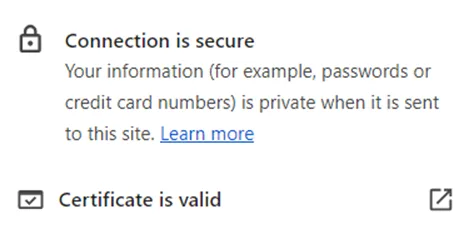
For those managing multiple sites, consider obtaining multi-site SSL certificates from providers like Let’s Encrypt or DigiCert, which offer solutions without the drawbacks associated with some other providers. Single websites should also have SSL certificates, and reputable hosting providers offer these as part of their services.
To maintain trustworthiness, automate the renewal of your SSL certificates to ensure they remain valid without manual intervention. This proactive approach helps safeguard user data, improve overall site credibility, and please Google in the search results — it’s been an SEO ranking factor since 2014, and it’s very difficult to secure a good listing without an SSL.
Efficient plugin management and integration strategies
Maintaining best practices for plugin management is especially important when handling multiple installations, but even when managing a single site, it’s important to keep on top of plugin updates and optimizations.
4. Automated update management approaches
With an increasing number of plugins, the risk of vulnerabilities also rises. Regularly updating WordPress versions, themes, and plugins can help reduce the number of potential windows open to attackers. Use solutions like Solid Central to manage updates across multiple installations, and back up your site before hitting that update button.
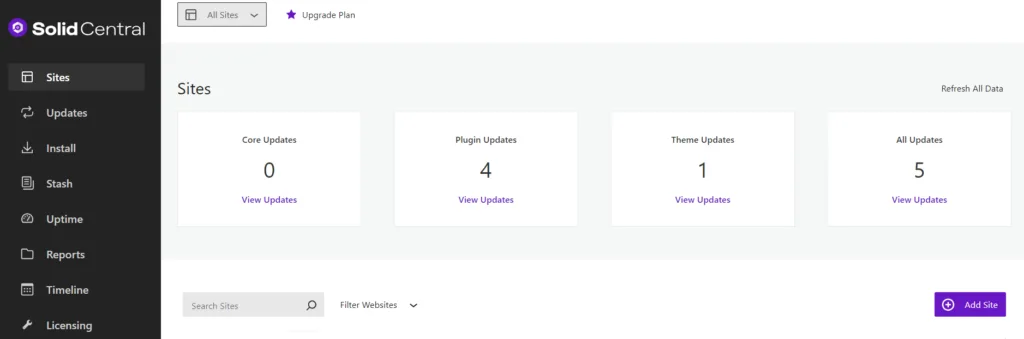
Adopt a manual update approach for safety, updating one plugin at a time and testing in a staging environment before deploying changes to your live site. After each update, conduct thorough testing to ensure everything functions as expected.
For the most logical approach, consider using a tool like Solid Security Pro, which scans for vulnerabilities and integrates with Patchstack to automatically patch untreated vulnerabilities. Regularly check for theme updates and ensure your PHP version is current, as WordPress frequently releases updates to improve security. Aim to update all plugins, themes, and PHP versions at least once a month.

5. Plugin optimization
Non-optimized plugins can cause code bloat and conflicts that can degrade the user experience. Start by minimizing resource usage through techniques like code minification, lazy loading, and load scripts only when necessary. Implement efficient caching mechanisms and consider a Content Delivery Network (CDN) while eliminating unnecessary database queries.
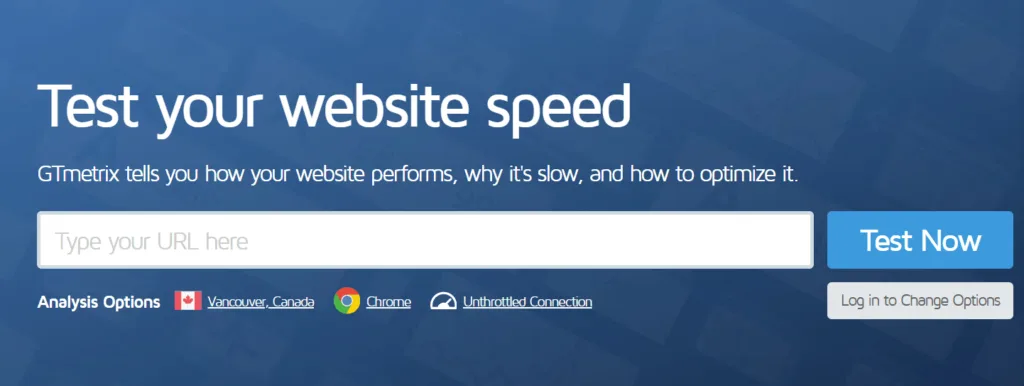
Regularly monitor performance using tools like GTmetrix to identify areas for improvement. Remove unused features and, of course, keep plugins updated to ensure they function optimally. Conduct routine audits of installed plugins to identify and eliminate redundant ones that may slow down your site. When managing multiple websites, consider solutions like Solid Central, which offers comprehensive plugin management features and can seriously reduce the time spent updating and optimizing your plugins.
6. Integrate testing workflows
Testing workflows can help you maintain site stability and consistent performance across updates. Automated testing systems verify plugin and theme compatibility with WordPress core updates, checking for conflicts between components and ensuring all features function correctly after changes are made.
Develop a comprehensive testing checklist covering critical site functionality, performance benchmarks, and security checks to ensure quality control across all client websites, regardless of complexity.
Implement version control for plugin configurations to track changes effectively. This allows for easy rollback of modifications, a comparison of settings between environments, and a documented history for troubleshooting and audits. The ultimate goal is to catch potential issues before they impact your live environments.
Testing procedures and deployment protocols
By focusing on development environment testing, plugin/theme evaluation, and production deployment safeguards, you can maintain functionality and performance:
7. Development environment testing procedures
Developing and testing changes in a dedicated development and staging environment allows you to replicate the live site’s features without risking disruptions during code changes or plugin updates:
- Establish distinct development, staging, and production environments: The development environment is utilized for local testing, while the staging environment serves as a space for client reviews and further tests. A production environment is where the live site operates. Some hosts, like Liquid Web’s managed WordPress hosting, include free staging environments for your convenience.

- Automated testing tools: Tools such as PHPUnit, Cypress, and Codeception allow you to verify that functionality remains intact across all environments, catching potential issues early in the development cycle. Automated tests can help ensure that new code integrates with existing features.
- Document and version control: Maintain thorough documentation of deployment processes using reliable procedures. Employ version control systems like Git to track changes across environments, enabling consistent deployment practices. This system provides the ability to roll back changes if issues arise, ensuring that you can quickly revert to a stable state if necessary.
8. Plugin and theme evaluation framework
When selecting plugins and themes, prioritize those developed by reputable developers with extensive WordPress experience. This practice helps maintain site stability, security, and performance while minimizing potential problems associated with unreliable plugins.
Assess the update frequency of plugins or themes to verify compatibility with your WordPress version, PHP version, and other plugins. This proactive approach prevents conflicts and ensures optimal performance across your website. Remember to evaluate customer support availability, as having access to assistance can be invaluable when dealing with complex issues.
Consider using a centralized management dashboard like Solid Central to handle plugin updates across multiple environments. This reduces manual maintenance time while ensuring site stability through automated compatibility checks.
Finally, evaluate installation metrics such as user ratings, community feedback, and installation counts to identify well-maintained and trusted solutions for your WordPress website.
9. Implement production deployment safeguards
Production deployment safeguards provide automated protection against failed updates and enable quick recovery from issues. Start by implementing automated rollback procedures that allow for quick restoration of previous stable versions in case of failed updates. Configure backup creation before any updates are applied to ensure data safety.
Set up monitoring alerts to catch issues before they escalate into painful problems. Automated testing of plugin updates prior to deployment can help identify potential conflicts early on. Configure email notifications for administrators when updates fail or rollbacks occur to keep your team informed.
Maintaining detailed deployment logs is equally important. Track all changes made to files and the database over time while documenting version numbers and timestamps for each update. Keeping comprehensive records of successful and failed deployments will aid in audits and troubleshooting efforts, ensuring a more reliable WordPress management process overall.
Performance optimization: Caching, core web vitals, and speed enhancement
This section goes beyond basic tactics like selecting fast, responsive themes like Kadence, using well-coded plugins, or opting for reliable hosting providers. Instead, we’ll focus on advanced techniques that lay the groundwork for a smooth-running website, while reducing the need for frequent hosting upgrades.
10. Advanced caching implementation
Caching is a powerful technique that improves website performance by reusing previously retrieved data, reducing server load and response times. To implement effective caching strategies, consider the following:
- Use object caching: Consider tools like Redis or Memcached to optimize database queries. This allows WordPress to retrieve query results from memory rather than querying the database repeatedly, resulting in faster page rendering.

- Implement full-page caching at the server level: You can store fully rendered HTML pages, allowing for quick retrieval without processing PHP scripts or querying the database. This can lead to reduced response times.
- Configure browser caching through server headers: This allows you to store static resources in users’ browsers. Regularly clear your browser cache to free up space for new data.
11. Implement CDN distribution
Integrating a CDN can help optimize WordPress performance, especially for sites with global audiences. CDNs reduce server load and improve content delivery speed by distributing assets across multiple geographic locations.
- Configure your CDN to handle static files such as images, CSS, and JavaScript. This offloads the delivery of these assets from your main server, improving response times.
- Implement Distributed Denial-of-Service (DDoS) protection through services like Cloudflare to shield your site from malicious traffic. This includes filtering requests and blocking suspicious IP addresses to maintain site availability during attacks.
“Although CDNs can boost speed and reliability, they’re very much a solution for sites with global audiences. Misconfiguration can be detrimental to performance, so be sure to use and set them up with care!”
Katy Boykin, Senior Product Marketing Manager, StellarWP
12. Advanced performance techniques
A performant website improves user satisfaction, search engine rankings, and overall business success. Don’t cut any corners here!
- Optimize database queries by implementing automated cleanup schedules for post revisions and spam comments, while identifying slow queries that need attention.
- Use asset loading strategies such as configuring critical CSS delivery for above-the-fold content, setting up asynchronous loading for third-party resources, and creating conditional loading rules based on page templates.
- Improve server-side optimizations by adjusting PHP memory limits and execution times, enabling HTTP/2 protocol support, configuring proper GZIP compression, and optimizing image delivery through lazy loading and automated image compression workflows.
Scale your WordPress development with confidence
Effective WordPress management hinges on the interconnected nature of security, performance, and maintenance. By adhering to security best practices, you protect your infrastructure and safeguard user data.
Strategic plugin management helps to maintain site stability and performance, while rigorous testing procedures ensure consistent functionality across all environments. What’s more, implementing performance optimization techniques lays a solid foundation for scalable growth.
View these practices as integrated systems rather than isolated tasks. Systematic updates, testing, and maintenance approaches significantly reduce technical overhead in managing your website:
- Start with a security audit.
- Implement automated testing.
- Establish development environments.
- Set up performance monitoring.
Get your WordPress management strategy in line and you’ll be free to focus on growth — safe in the knowledge that your site is secure!


Stay Updated
Stay informed about the latest StellarPay updates, new features, and improvements. Subscribe to our newsletter for expert tips to help your clients succeed with their eCommerce websites.

