
The StellarSites Account Dashboard is your central hub for managing your hosting plan, WordPress websites, billing details, and support options. From here, you can update your account info, access site tools, handle subscriptions, and contact support all in one place.
Accessing Your StellarSites Account #
To access your StellarSites account:
- Go to my.stellarwp.com
- Log in using your email and password.
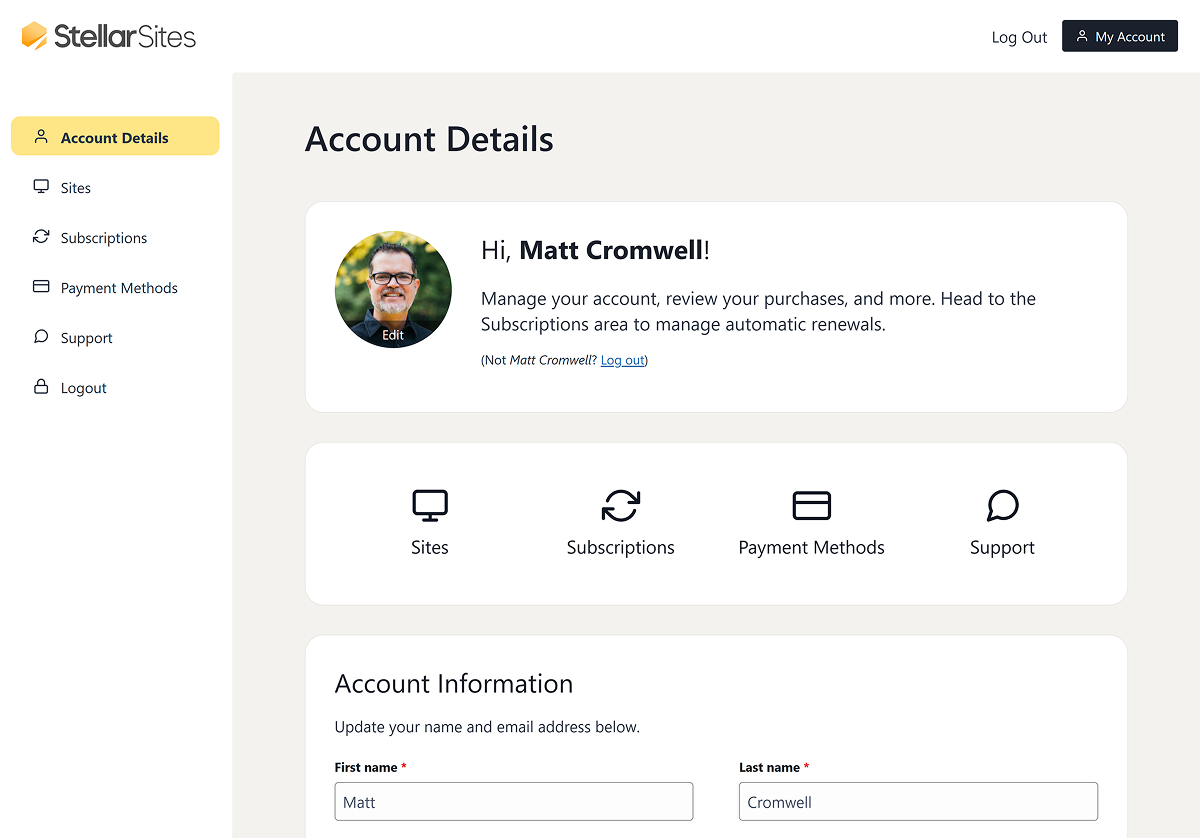
You’ll land on the My Account dashboard, where you can manage your sites, billing, and support.
Navigating the StellarSites Account Dashboard #
The StellarSites Account Dashboard is designed for easy navigation, with clear sections dedicated to different aspects of account management. Here’s an overview of each section:
Account Details #
This section allows you to update your personal information, including your name and email address. Any changes made here will reflect in your account profile and communications.
You can update your personal info and account login credentials in this section by editing your name or display name, changing your email address, or setting a new password. To do this, go to My Account > Account Details, make your changes, and click Save.
Sites #
Once you’ve logged into your StellarSites account, the Sites section is where you’ll manage the WordPress websites linked to your hosting plan.
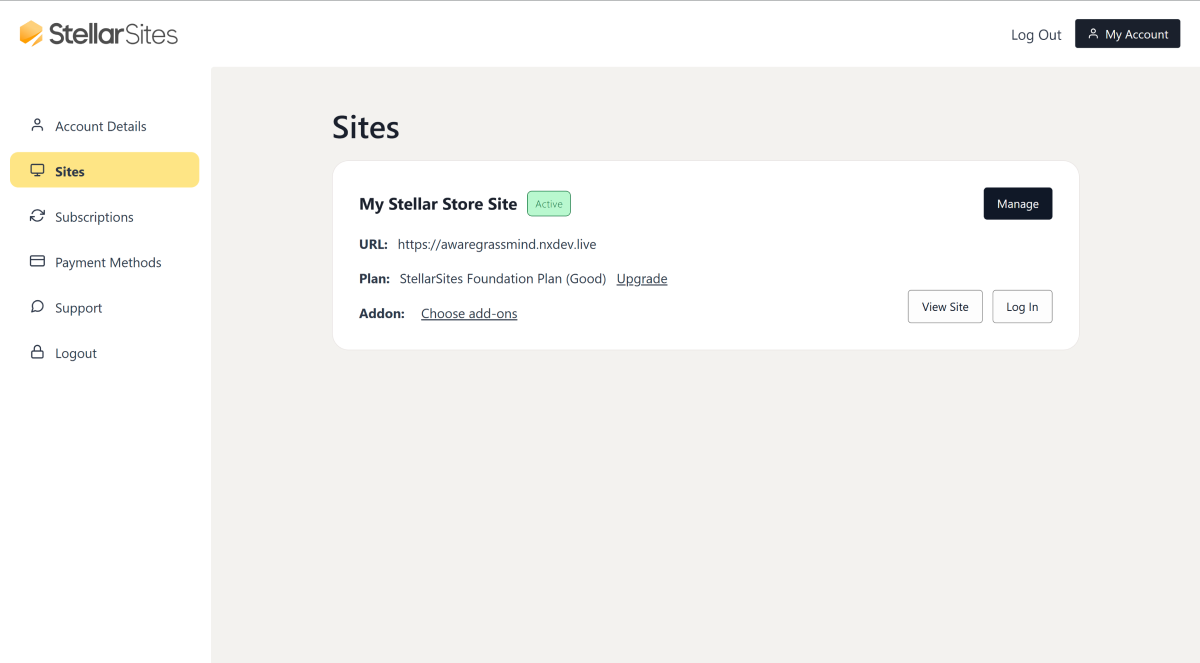
This area gives you a quick overview of all your sites at a glance—along with simple tools to take action, whether you’re logging into your admin panel, upgrading your plan, or checking performance details.
Each site in your account is listed with key information, including the site URL, your current plan, available upgrades or add-ons, and action buttons to help you manage the site.
- Manage – Opens the Site Details page, where you can configure advanced settings and see more information specific to that site. You’ll find more details in the section below.
- View Site – Opens the live homepage of your WordPress website.
- Log In – Uses secure, session-based auto-login to take you straight into the WordPress admin dashboard—no password required.
If you’re just getting started, use the Manage button to explore the Site Details area, where you’ll find helpful setup tips and options to personalize your site.
Sites > Site Details #
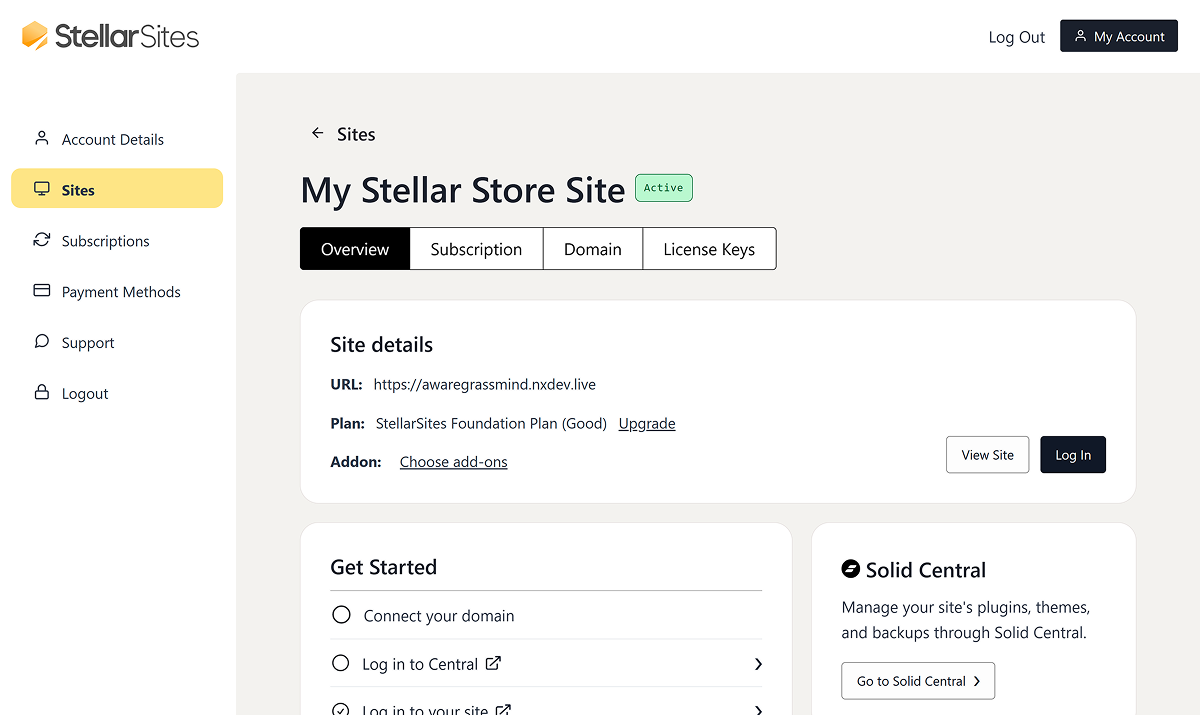
Clicking Manage brings you to the Site Details screen, where everything related to a single site is organized into easy-to-navigate tabs.
Overview
Similar to the main Sites page, here the Site Details are listed along with their related action links and buttons (Upgrade, Choose add-ons, View Site, and Log In).
- The “Get Started” section provides quick links for easy access to several assets in your StellarSites account. This simple checklist helps ensure you have the best success with your websites.
- Connect your domain — this ensures your audience finds you with your custom domain.
- Log in to Central — Solid Central is your hub for managing any and all WordPress websites you have, whether hosted with StellarSites or not. Solid Central is a great place to ensure your automated backups, plugin and theme updates, and many more general WordPress maintenance tasks are done regularly and with confidence. Learn more about Solid Central here.
Log into your Site — now that you’ve built a StellarSite, log in and start making it yours!
Connection Settings
The connection settings show you how to securely access your files on the server. This is provided as SFTP/SSH credentials. This information is always available to you, but it cannot be edited or configured.
Your WordPress Credentials are also provided here. Your admin username is listed here for your convenience, but it cannot be edited.
If you need to reset your WordPress admin password, there are two ways to do it:
Reset your Admin Password on the Profile Page
- Click the Log In button
- Navigate to your Profile page and update the password
Reset Your Admin Password Using the Forgot Password Link
- Go to the /wp-admin URL of your website (e.g., example.com/wp-admin)
- Find the Forgot Password link under the fields on the login screen
Click the link and follow the instructions provided to the admin email address you provided at checkout
Subscription
This tab outlines your subscription details for this site, including your plan, renewal date, and current status. You can also see the products included in your plan and view your billing history. To see all your subscriptions, head to the Subscriptions tab in the main left-hand menu.
Domain
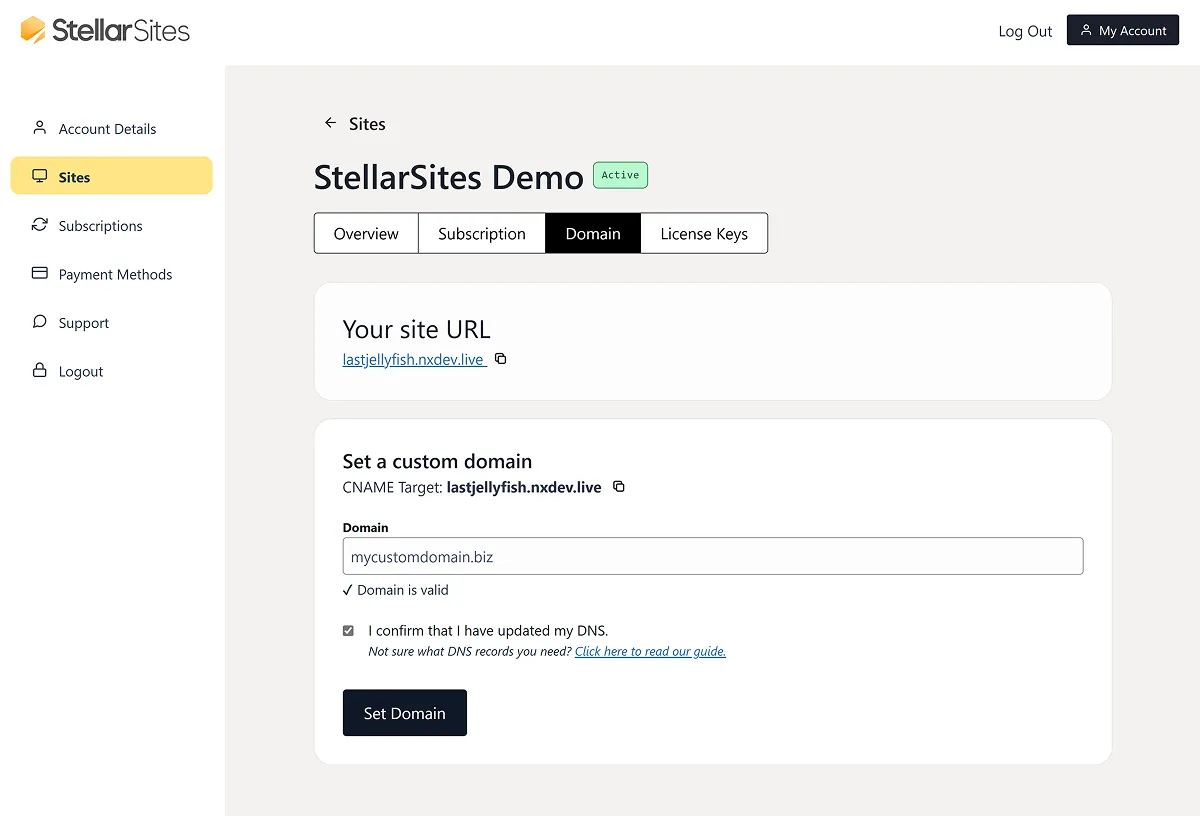
Here, you can view your default StellarSites domain and connect a custom domain of your own (like yourbrand.com). If you’re ready to launch, this is where you’ll make that transition. Learn more about setting your custom domain here.
License Keys
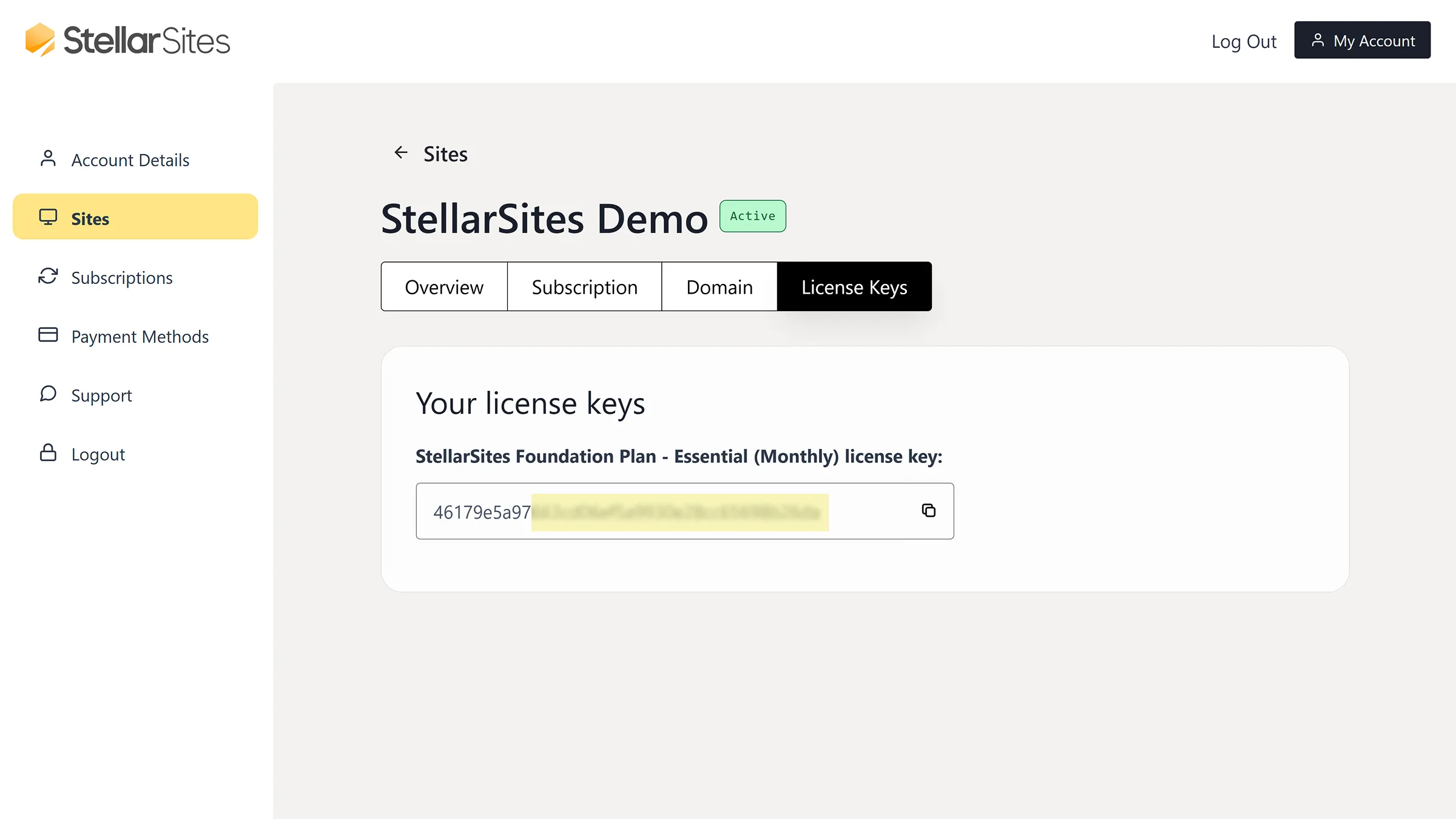
Any StellarWP plugins included in your plan (like GiveWP or Solid Security) come with license keys. They’ll be pre-installed and activated, but to ensure you receive updates, you’ll need to copy your license key and paste it into the plugin’s settings page in your WordPress dashboard.
Subscriptions #
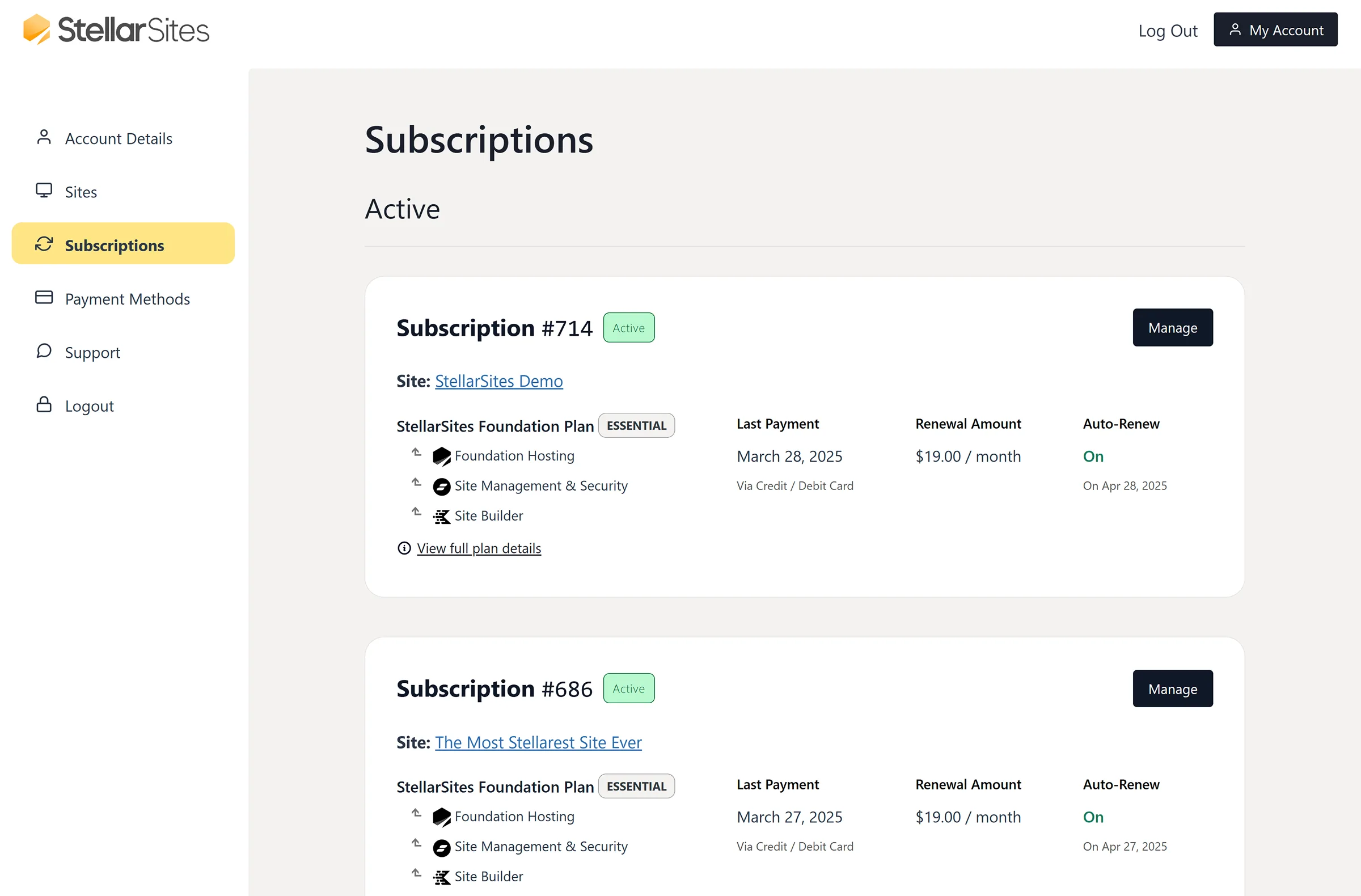
Under Subscriptions, you’ll find details about your active hosting plans, renewal dates, and available upgrades. This section ensures you remain in control of your hosting plan and its benefits.
The Subscription card will highlight the following for you:
- Your Subscription number and its status
- The site that is associated with this subscription
- The Plan that the subscription is for, including the products that are included in that Plan
- When the last payment was received for these subscriptions
- How much the renewal is for and the period in which the subscription will renew (either monthly or annually)
- Your auto-renew status and the date of the next auto-renewal charge.
Payment Methods #
Keep your billing information up to date under the Payment Methods section. Here, you can add, remove, or change your preferred payment method to ensure seamless subscription renewals.
Currently, you can add either a credit card or a PayPal account to your Payment Method options.
Support #
If you need assistance, the Support section provides access to our AI chatbot powered by our knowledgebase. And if the AI cannot help you, our very human expert team is just a click away.
Logout #
For your security, always log out when using a shared or public device. You can find the Logout option at the bottom of the dashboard menu.


