Encountered some issues along the way? This guide covers common issues that may occur on your StellarSites website and the steps for troubleshooting them.
If the issue persists after following the recommended steps, you can always reach out to the StellarSites support team for assistance through your StellarSites dashboard. (Pro tip: Include your troubleshooting steps.)
Too Many Redirects / Redirect Loop Error #
If your StellarSites displays an error like the below on your browser:
“Safari can’t open the page because it can’t follow more than 20 redirections.”
“The page isn’t redirecting properly” (Firefox)
This usually means a redirect loop issue, wherein your browser is being sent back and forth between URLs in a way that will never complete.
The common cause of this error is having mixed or incorrect URLs on your WordPress site, so head over to your WP Admin → Settings → General and check the following fields and make sure they display the correct domain in lowercase:
- WordPress Address (URL)
- Site Address (URL)
Once corrected, clear your site and browser caches, and try viewing the site again.
If you’re still seeing the error, here are the other areas you could check:
- Check for conflict with another plugin that has a redirect/SSL functionality
- Check the
.htaccessfile for duplicate or conflicting rules
My Kadence Creative Kit license is showing “Your license is expired” after creating my StellarSites website #
In some cases, after setting up a StellarSites website, the Kadence Creative Kit license key may incorrectly display as “Your license is expired” despite having a valid license that’s included in your StellarSites plan.
To resolve this issue, follow these steps:
- Visit https://www.kadencewp.com/my-account/ and request for the “Lost your password?” link.
- Enter the email address used for the StellarSites website to request access to the Kadence account.
- Once logged in, retrieve the Kadence license key.
- On your website, navigate to the licensing page
/wp-admin/admin.php?license=show&page=kadence-blocks-home. - Clear the existing license, then re-enter the license key to refresh activation.
- Clear the site and browser caches.
This should update the license status and remove the expired message.
How do I log in to my site? #
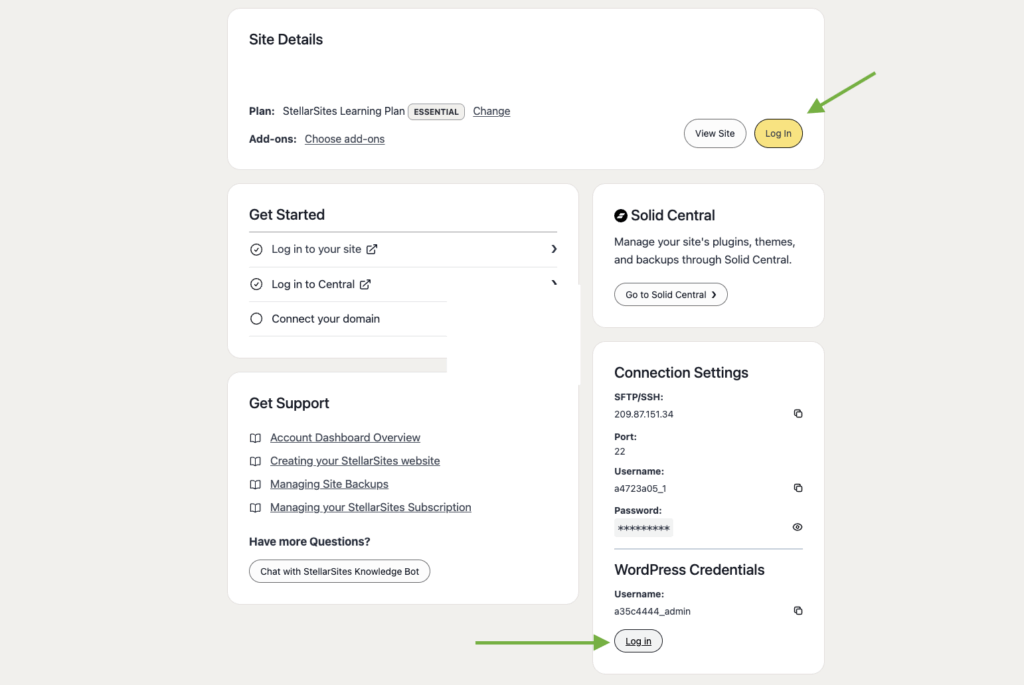
Signing into your site is simple via your StellarSites dashboard. Once signed in to your dashboard, go to the Sites tab, and you will see two buttons on the page that will automatically sign you in.