
StellarSites gives you the flexibility and control of a traditional WordPress setup, with the simplicity of a managed platform. If you’re comfortable using the command line, you’ll have secure SSH access and built-in WP-CLI support ready to go. Prefer using a visual file manager? SFTP access is included too.
Why Use SSH? #
SSH (Secure Shell) provides direct command-line access to your StellarSites environment. It is perfect for developers and technical users who want to:
- Use WP-CLI for fast and scriptable WordPress management
- Transfer files securely
- Run custom scripts or automate maintenance tasks
SSH access is available on every StellarSites plan.
How to Access Your Site via SSH #
- Get Your SSH Credentials
- Log in to your StellarSites dashboard.
- Open your site’s control panel.
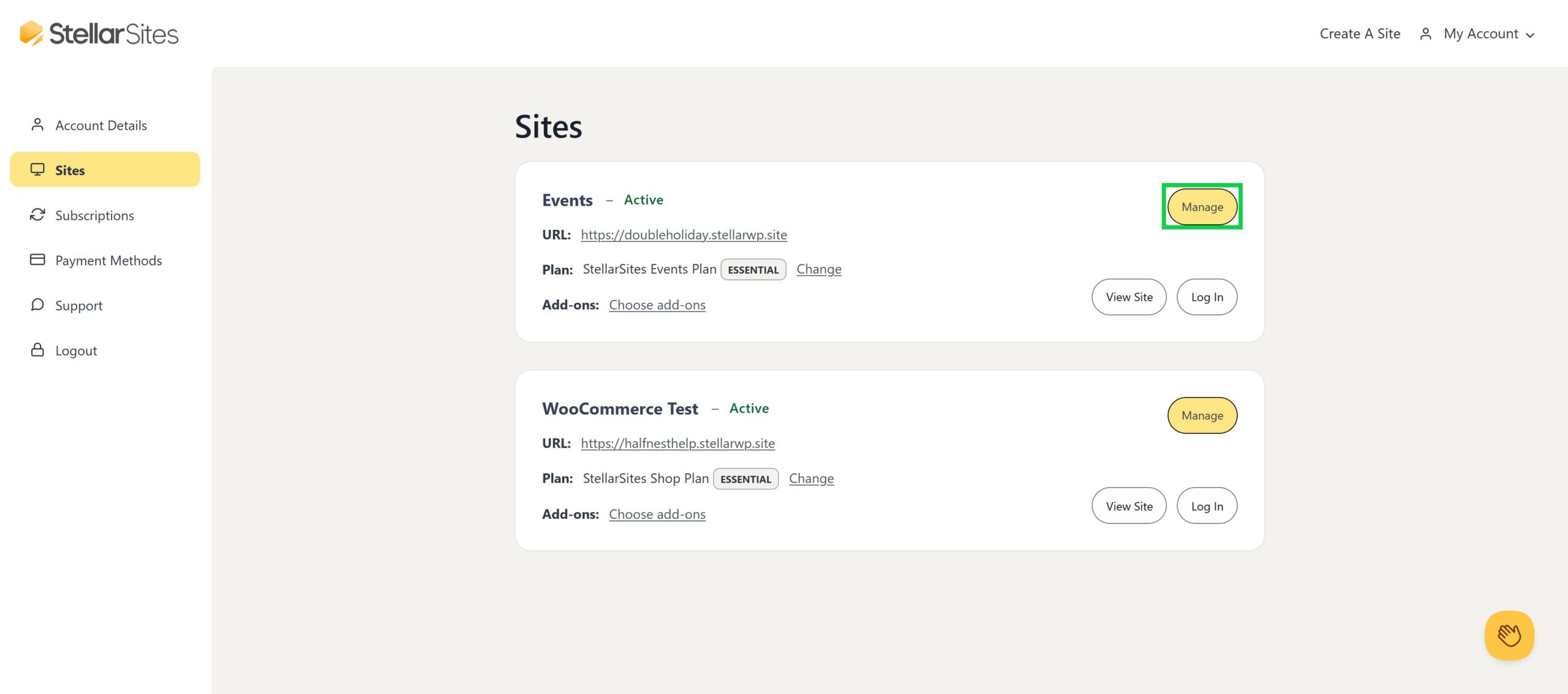
- Under Overview, locate the Connection Settings section.
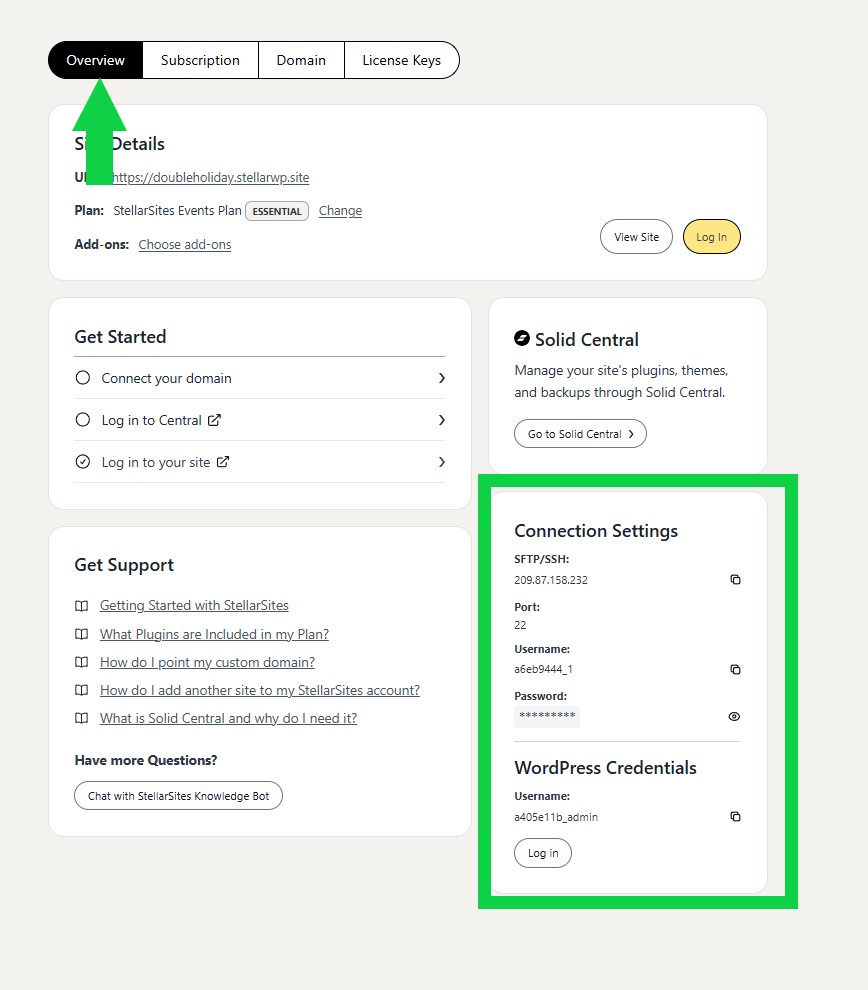
- Copy your IP address, username, password, and port.
WP-CLI is Pre-installed and Ready #
WP-CLI (link: https://wp-cli.org/), the command-line interface for WordPress, is pre-installed on all StellarSites. Once connected via SSHclear, you can use it to manage almost every aspect of your site.
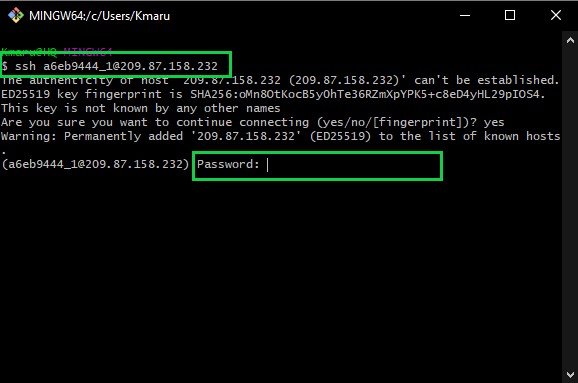
Example commands:
wp plugin update –all
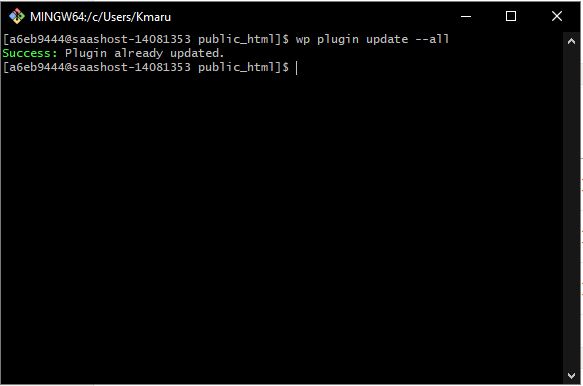
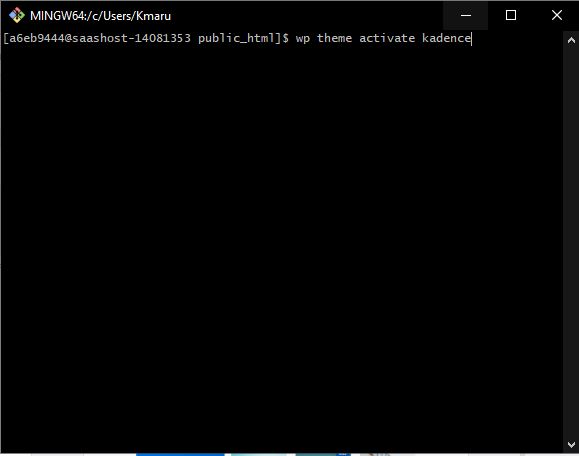
wp theme activate kadence
wp user list
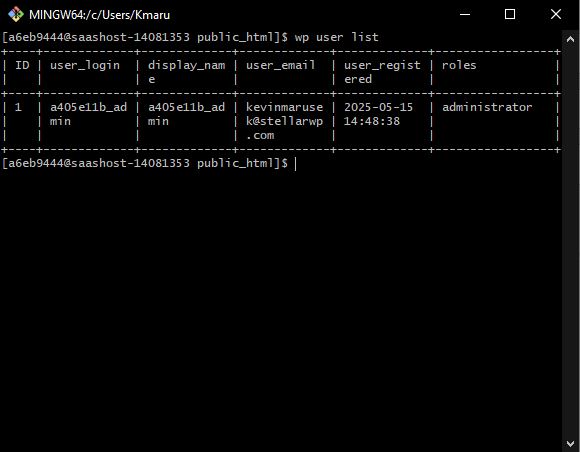
This is a powerful tool for developers managing multiple plugins, content, or users.
Accessing Your Site with SFTP #
If you prefer a graphical interface, you can use an SFTP client like FileZilla, Transmit, or Cyberduck.
Steps to Connect via SFTP: #
- Open your preferred SFTP application
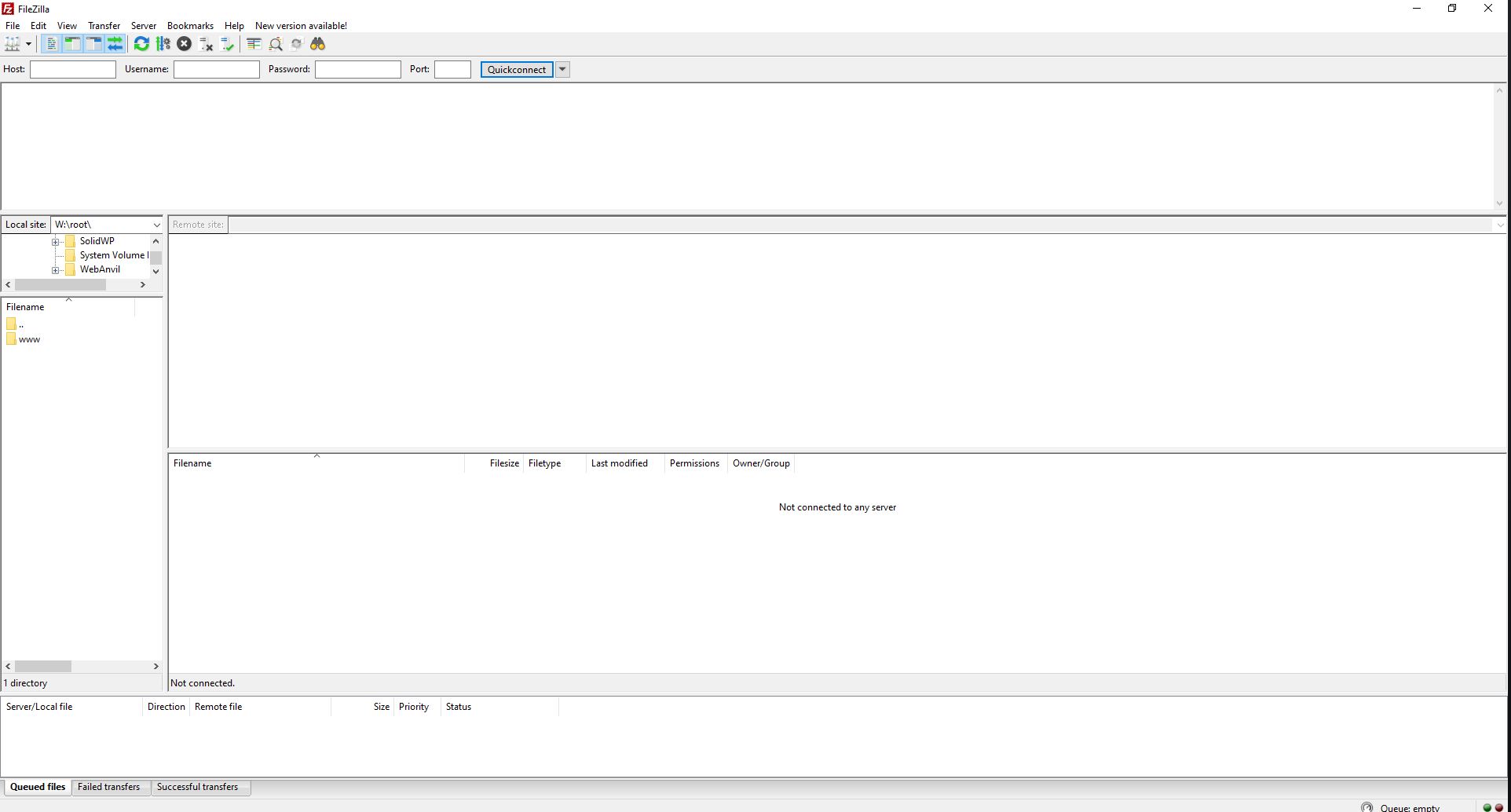
- Enter your credentials (found under Sites > Overview > Connection Settings in the StellarSites dashboard):
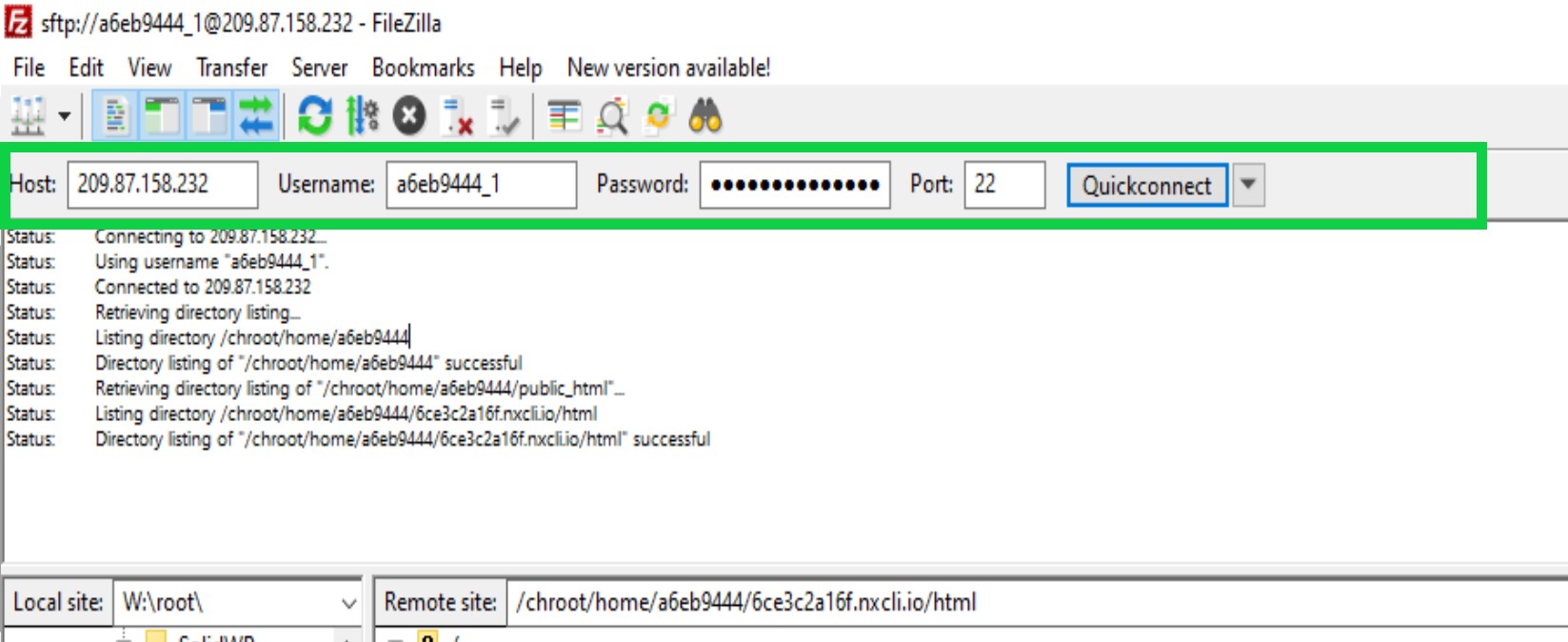
- Host: The IP address under “SFTP/SSH”
- Port: 22
- Protocol: SFTP
- Username and password: as listed in your account (or use your SSH key if configured)
- Browse and manage your files
Once connected, you will be in the root directory of your WordPress installation. From there, you can upload custom themes, download backups, or edit files as needed.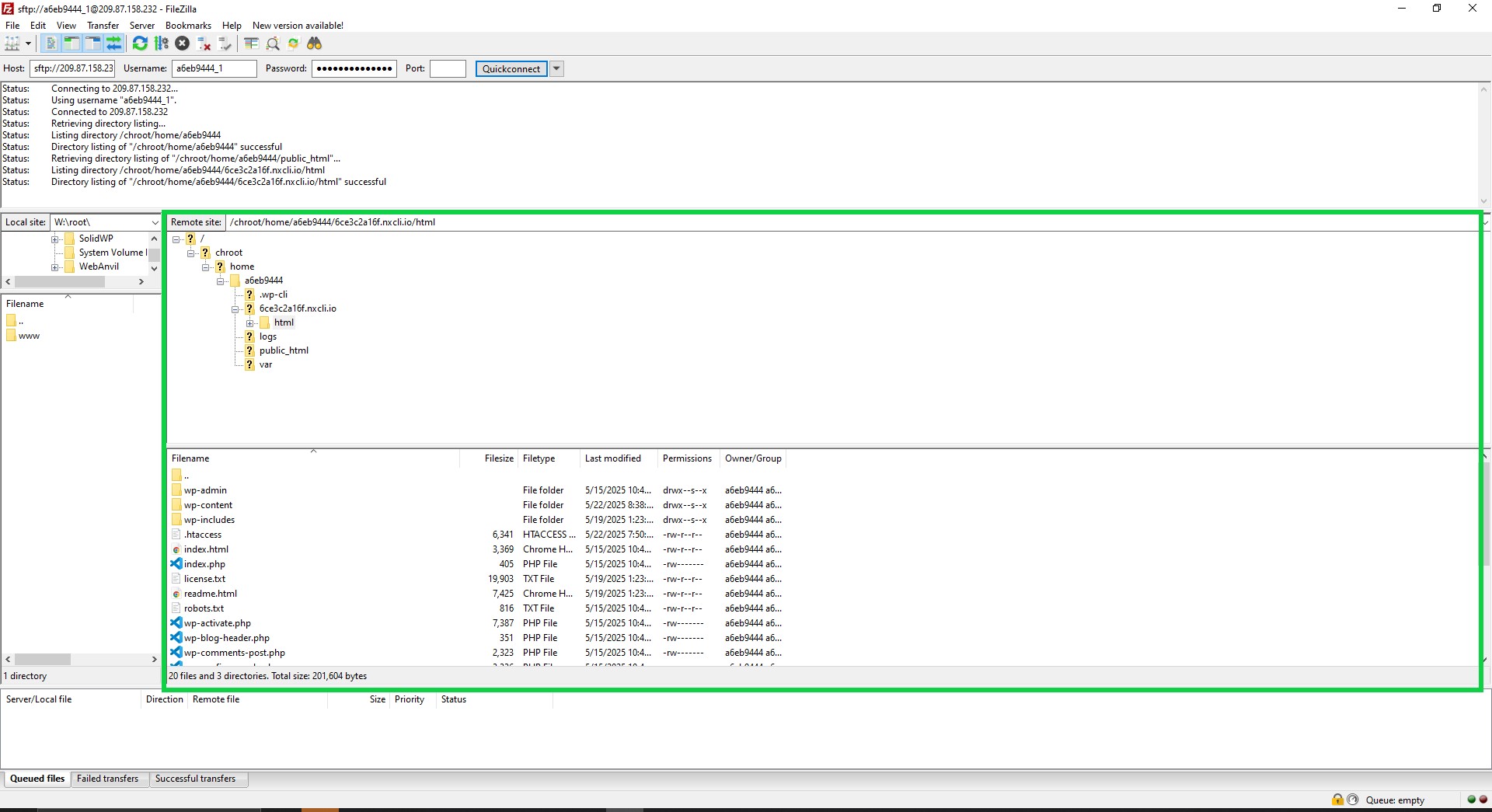
Note: StellarSites does not support unencrypted FTP connections. Only secure SFTP is allowed.
Troubleshooting and Recommendations #
- Cannot connect? Make sure you are using the correct port (22) and that your network does not block SSH/SFTP traffic.
- Want to use Visual Studio Code? The Remote – SSH extension makes it easy to connect and manage files directly frm your editor.
- Need help? Our support team can help you with connection issues, SSH key setup, and permissions.
Summary #
SSH and SFTP access are built into every StellarSites plan so you can work the way you want—whether that means running WP-CLI commands or dragging files in with your favorite client. You are in control, and we are here to support you every step of the way.
Let me know if you’d like to add screenshots, examples for specific clients like FileZilla, or split this out into separate docs.


