
Accessing Your Subscription Details #
To manage your StellarSites subscription, log in to your StellarSites account and navigate to the Subscriptions tab in the left-hand menu. Here, you can view key details about your plan, including:
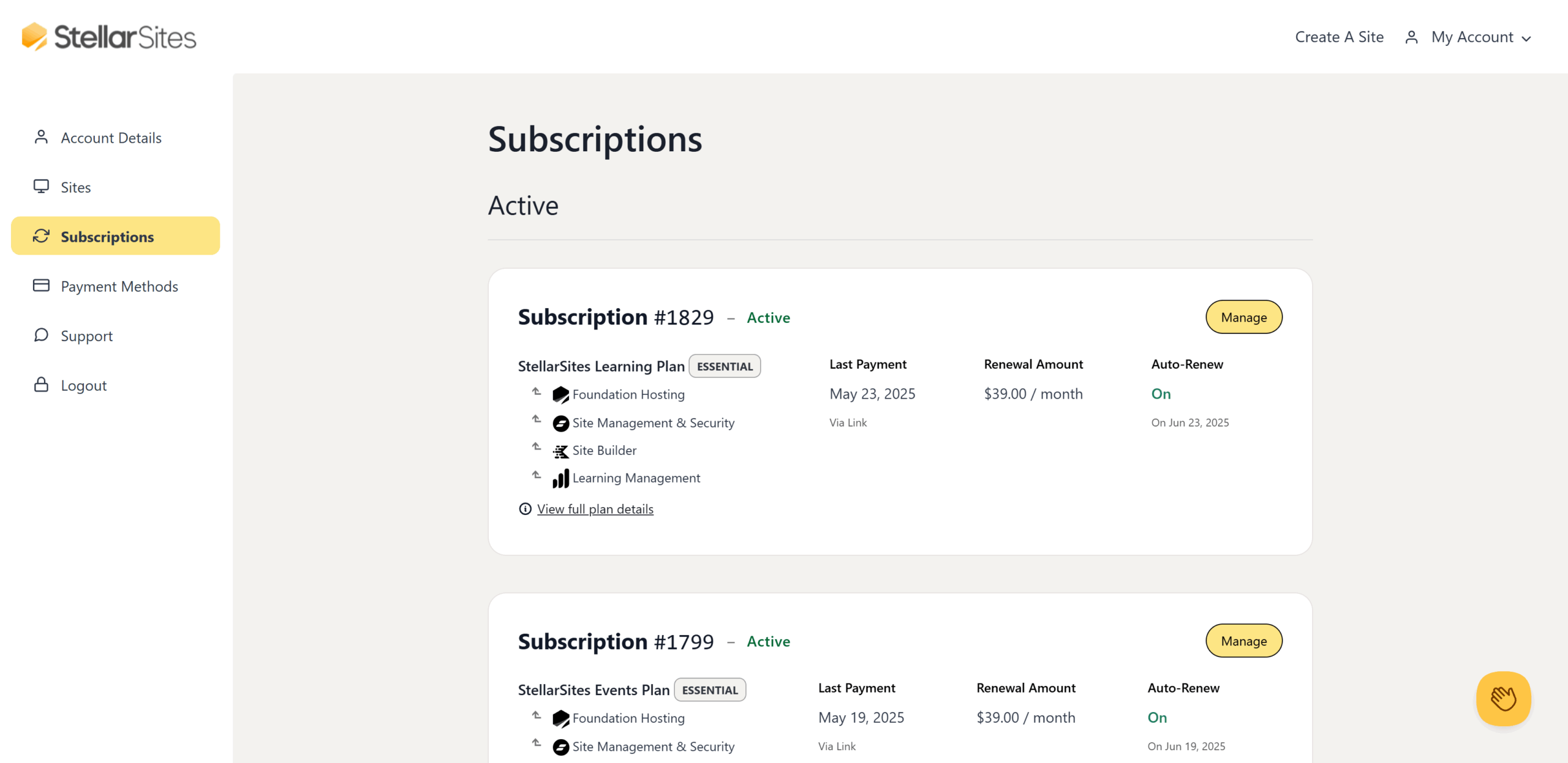
- The last payment date and renewal date of your subscription.
- Your renewal amount and payment method on file.
- The auto-renewal status, which you can enable or disable as needed.
- A list of included features and services in your plan.
Click “Manage” to change your payment method, renew early, and download your invoice.
How to Upgrade Your Plan #
Upgrading your StellarSites plan can be done easily from your account dashboard.
Steps to Upgrade: #
- Log in to your StellarSites account.
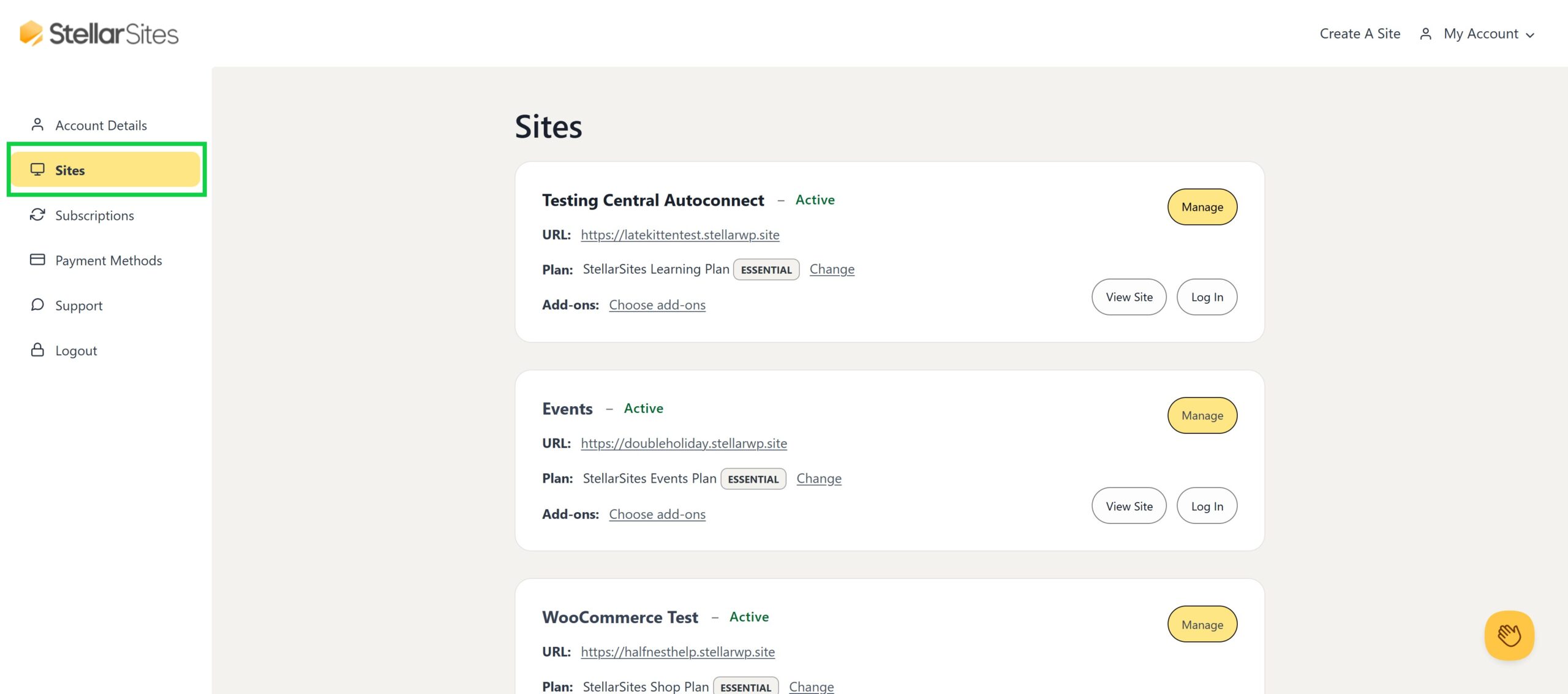
- Navigate to the Sites tab.
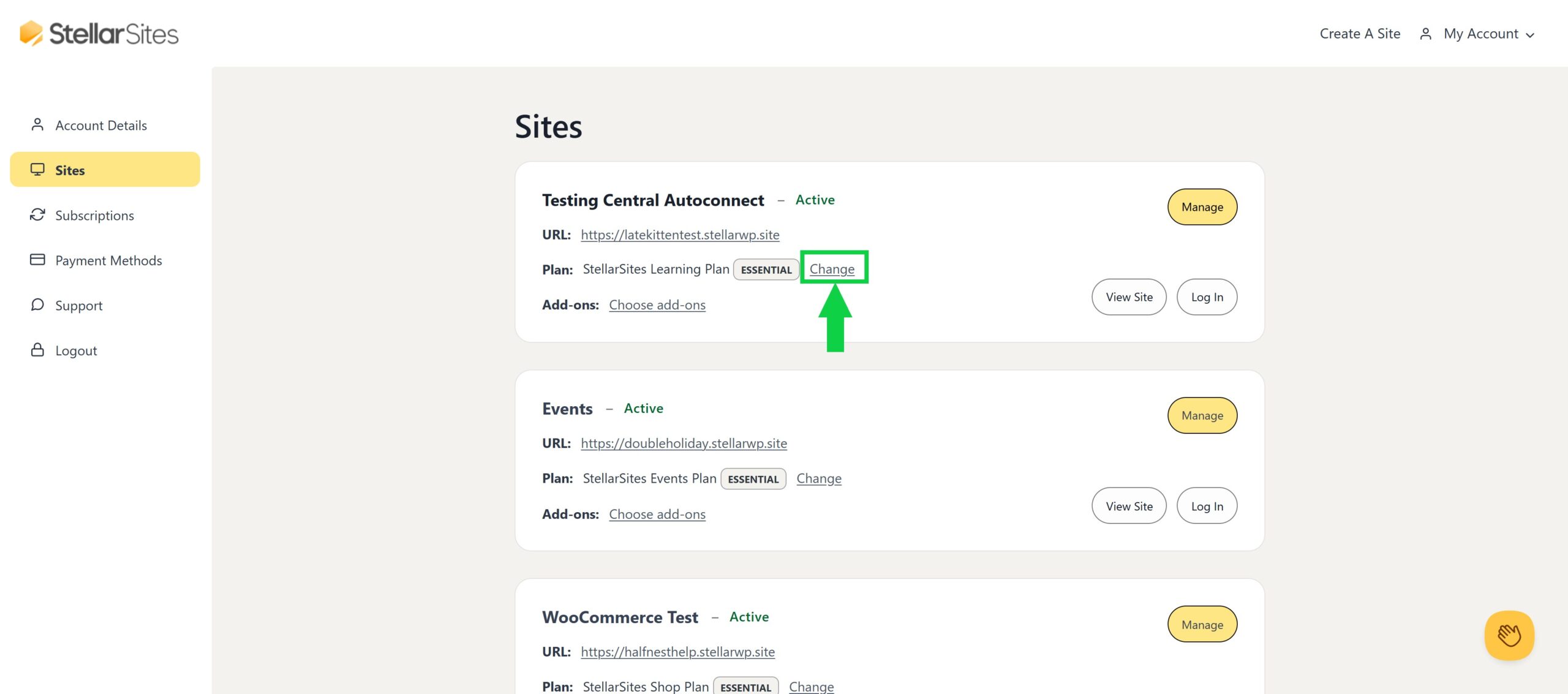
- Locate the site you’d like to upgrade and select Change.
- Choose your desired plan and complete the payment process.
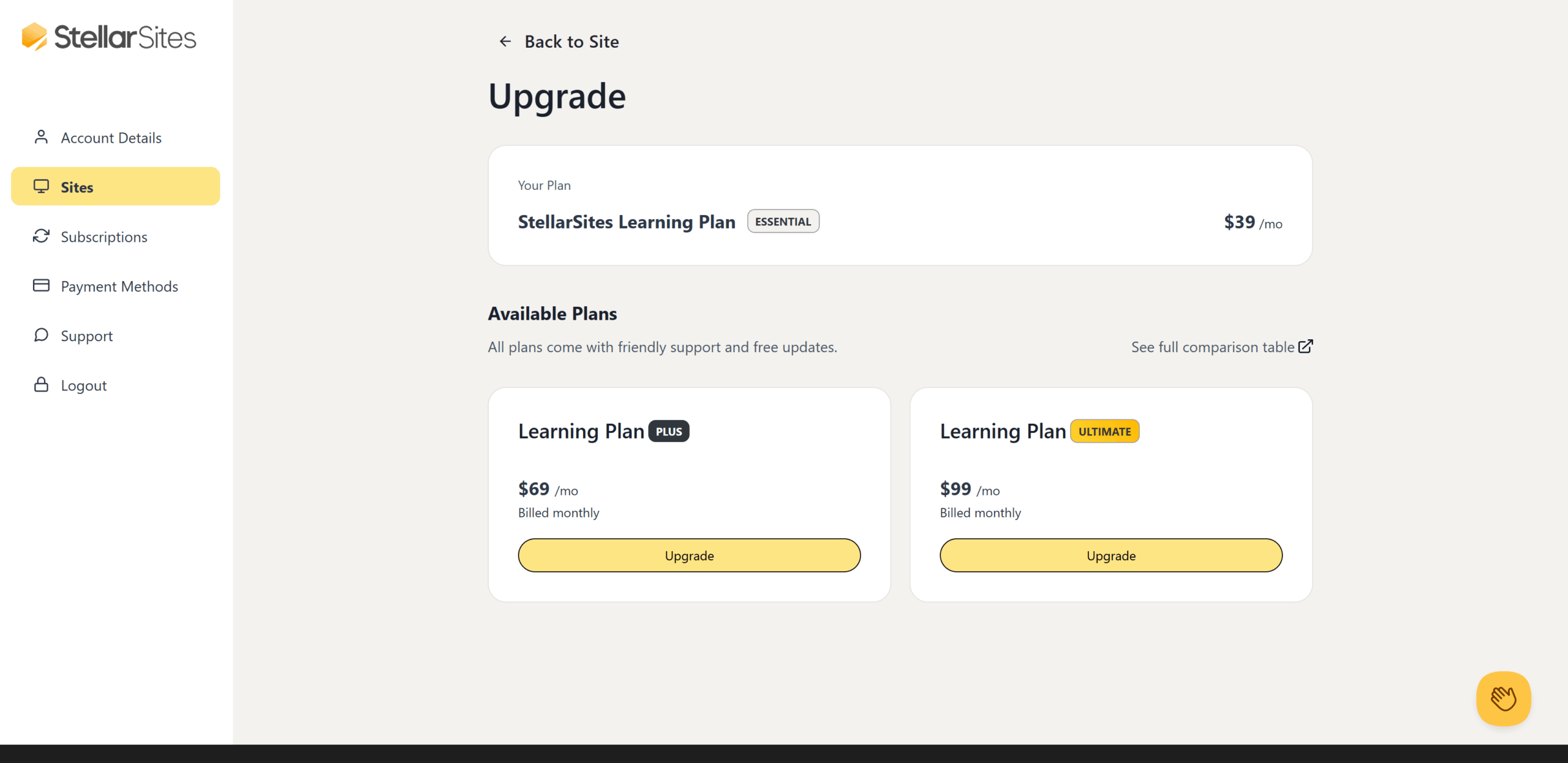
- Your plan will be upgraded immediately after successful payment.
How to Downgrade Your Plan #
Currently, downgrades cannot be processed directly from your account. If you need to switch to a lower-tier plan:
- Contact [email protected] with your request.
- The StellarWP team will review your request and assist with the downgrade.
- Any changes will be reflected in your next billing cycle.
For additional assistance, visit the Support section in your StellarSites account.
Managing Auto-Renewal #
You can toggle auto-renewal on or off at any time:

- Navigate to the Subscriptions tab.
- Locate the Auto Renew section.
- Use the toggle switch to enable or disable auto-renewal.
If auto-renewal is disabled, your subscription will expire at the end of its billing period unless renewed manually. Disabling auto-renewal does not trigger a refund.
Updating Payment Information #
To update your payment method from your StellarSites account:
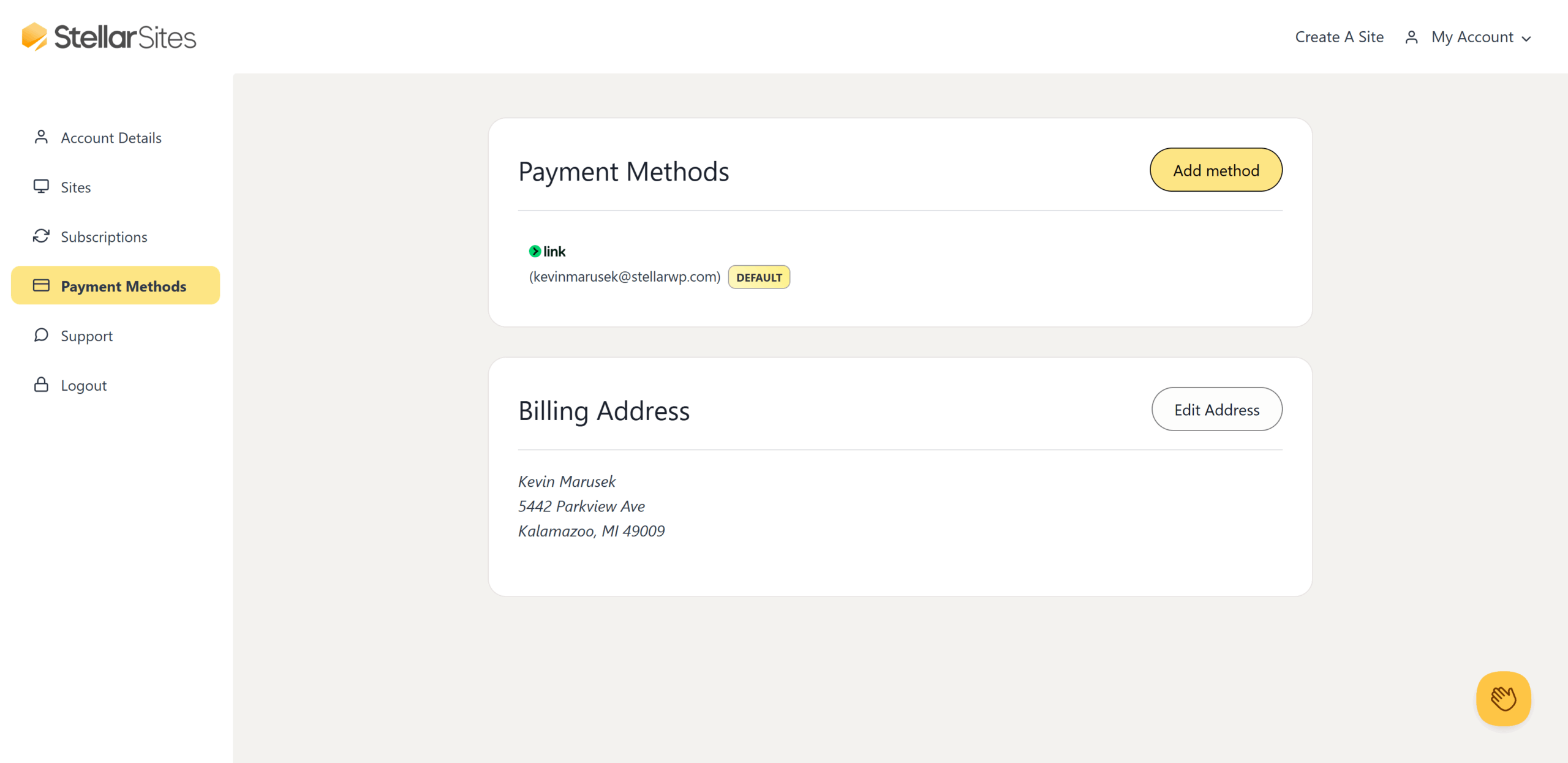
- Go to the Payment Methods tab.
- Click Add method to enter new payment details.
- Set the new payment method as default if you want it to be used for future payments.
- You can also delete old payment methods if they are no longer needed.
Renewing Your Subscription Early #
If you want to renew your subscription before the expiration date:
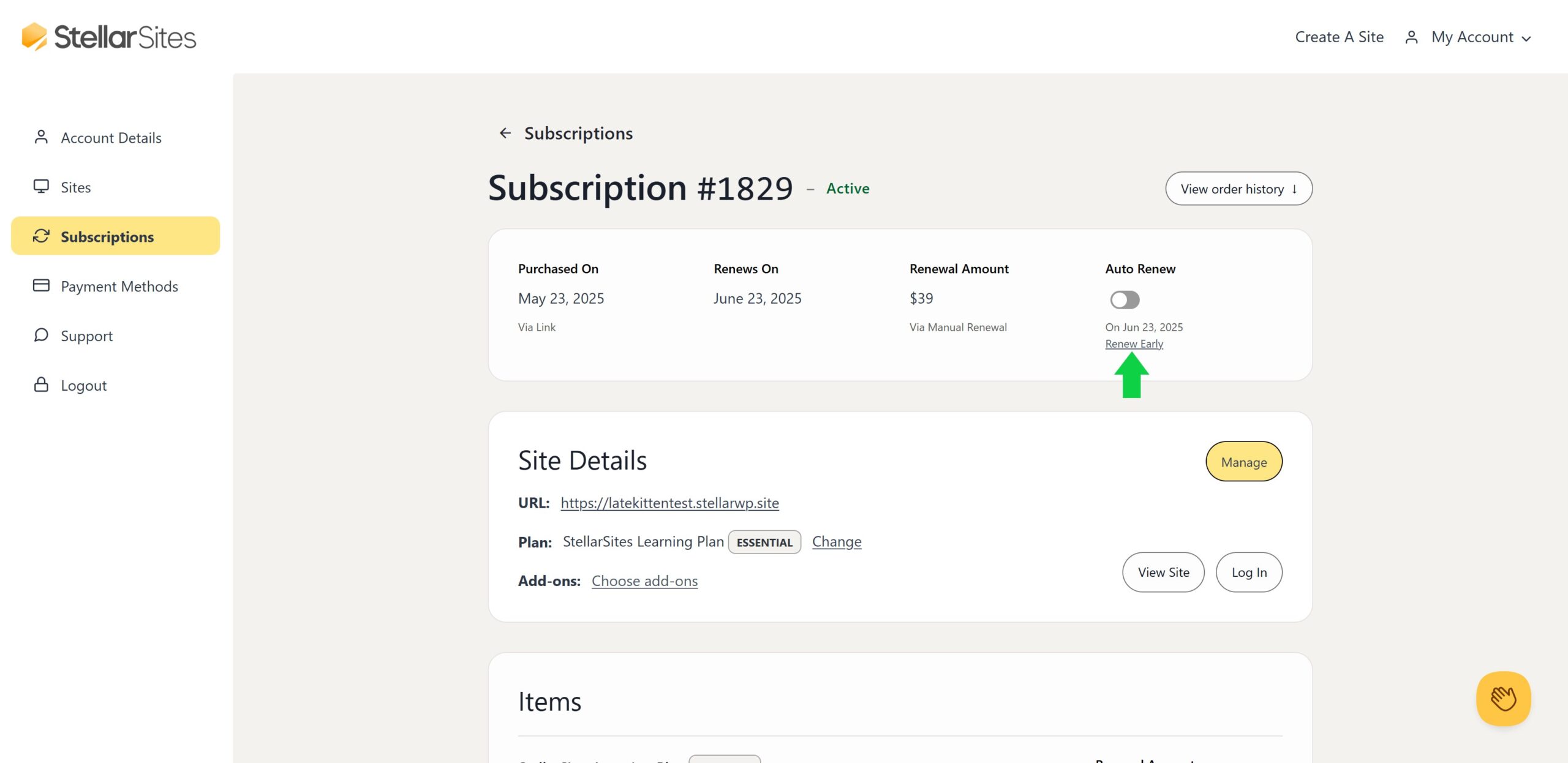
- Navigate to the Subscriptions tab then click “Manage”.
- Click Renew Early next to your active subscription.
- Confirm your payment details and proceed with the renewal.
Viewing Order History & Downloading Invoices #
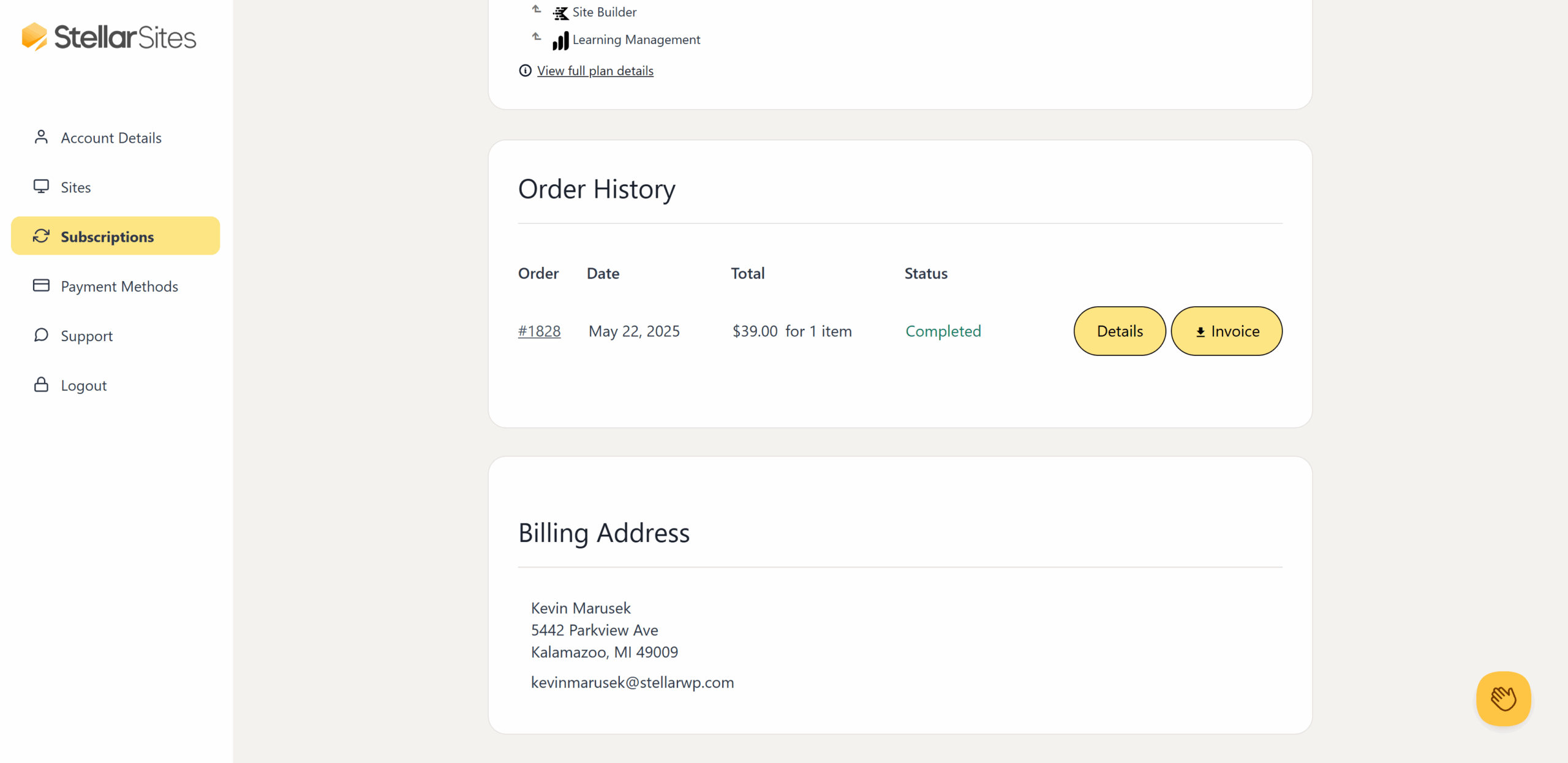
- In the Subscriptions tab → Manage → scroll to the Order History section.
- Click on a specific order number to view details.
- You can download orders for past payments directly from this section.
Accessing Your StellarSite & Solid Central #
Your subscription dashboard allows you to:

- Log in to your StellarSite directly.
- Access Solid Central, where you can manage plugins, themes, and backups.
- View SFTP/SSH credentials for advanced site management.
Canceling Your Subscription #
If you wish to cancel your subscription:

- Navigate to the Subscriptions tab.
- Locate your active subscription.
- Toggle “Auto-Renew” to the off position. You will see “via manual renewal” under “Renewal Amount” indicating that your subscription will not automatically renew.
Once auto-renewal is disabled, your subscription will remain active until the end of your current billing cycle, after which access to your StellarSite will be removed. Toggling off auto-renewal does not trigger a refund.
For further assistance, contact [email protected] or visit the Support section in your account.


