
Introduction #
Managing multiple StellarSites involves two complementary tools: the StellarSites Dashboard for site discovery and quick access and Solid Central for cross-site administration of critical tasks such as updates, backups, security, and performance monitoring. This guide explains how new sites are registered, how to navigate both interfaces, and best practices for minimizing downtime and administrative overhead.
Adding Additional StellarSites #
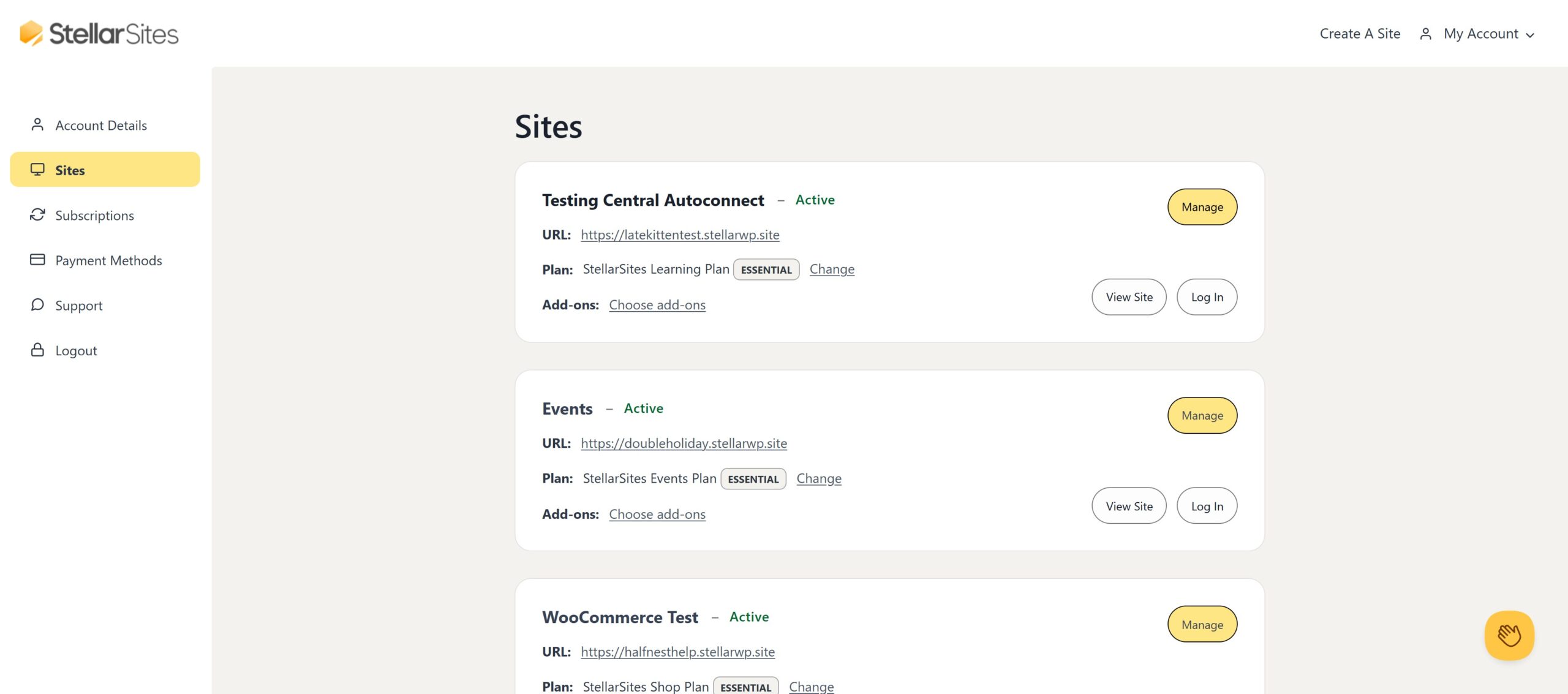
When a new StellarSite is purchased or migrated, it appears automatically in your StellarSites Dashboard—no manual configuration required.
Automatic Site Registration #
- Immediate visibility: New sites will appear in the dashboard within seconds of activation.
- Essential details displayed:
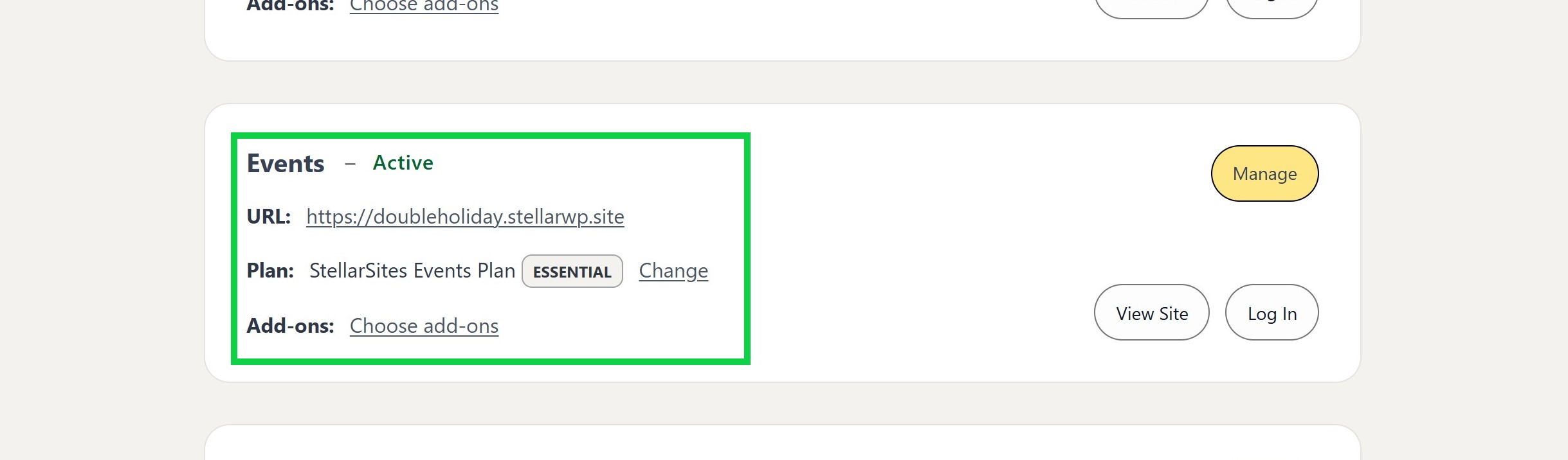
- Site Name (clickable label)
- Primary Domain (current URL)
- Plan Level (e.g., Starter, Pro, Agency)
- Current Health Status (green/yellow/red indicator)
Quick Actions #
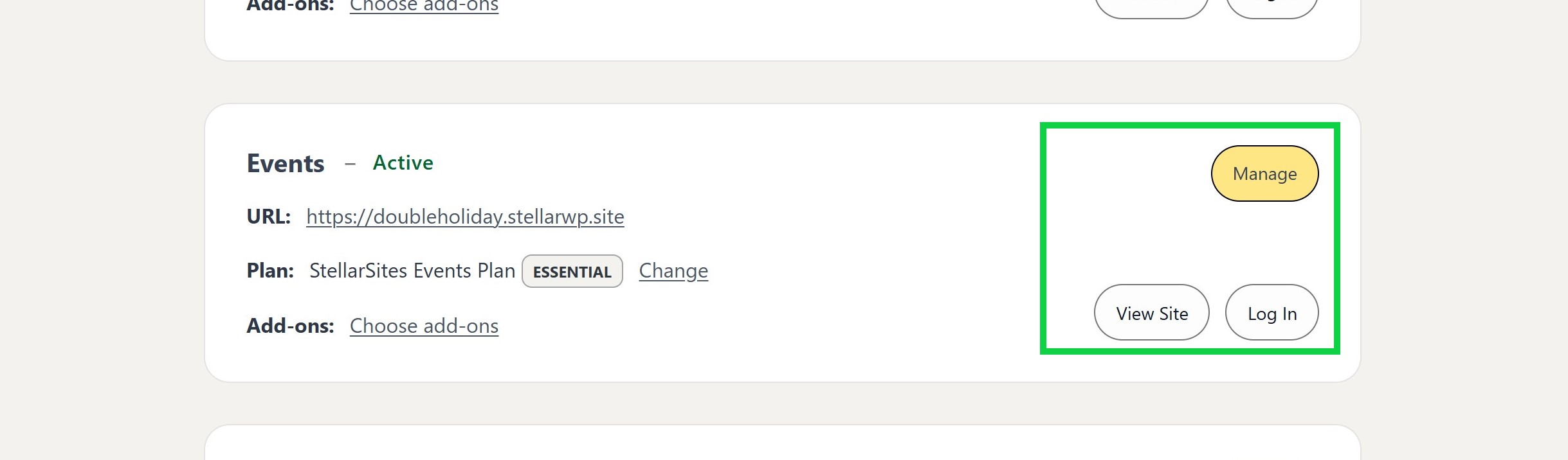
Next to each site entry, a “Action” items, that give you the ability to:
- Manage Settings: Access site-specific domains, billing info, and staging environment controls.
- View Live Site: Open the public URL in a new tab without additional logins.
- WordPress Admin: Log directly into the site’s dashboard for content or plugin edits.
Trade-Offs and Considerations #
- Grouping vs. individual focus: If you manage dozens of sites, use consistent naming conventions (e.g., “ClientA-Site1”) or tagging to reduce visual clutter.
- Onboarding verification: Automatic registration speeds are set up, but allocate a few minutes per site to confirm that DNS and SSL certificates are correct.
Centralized Management with Solid Central #
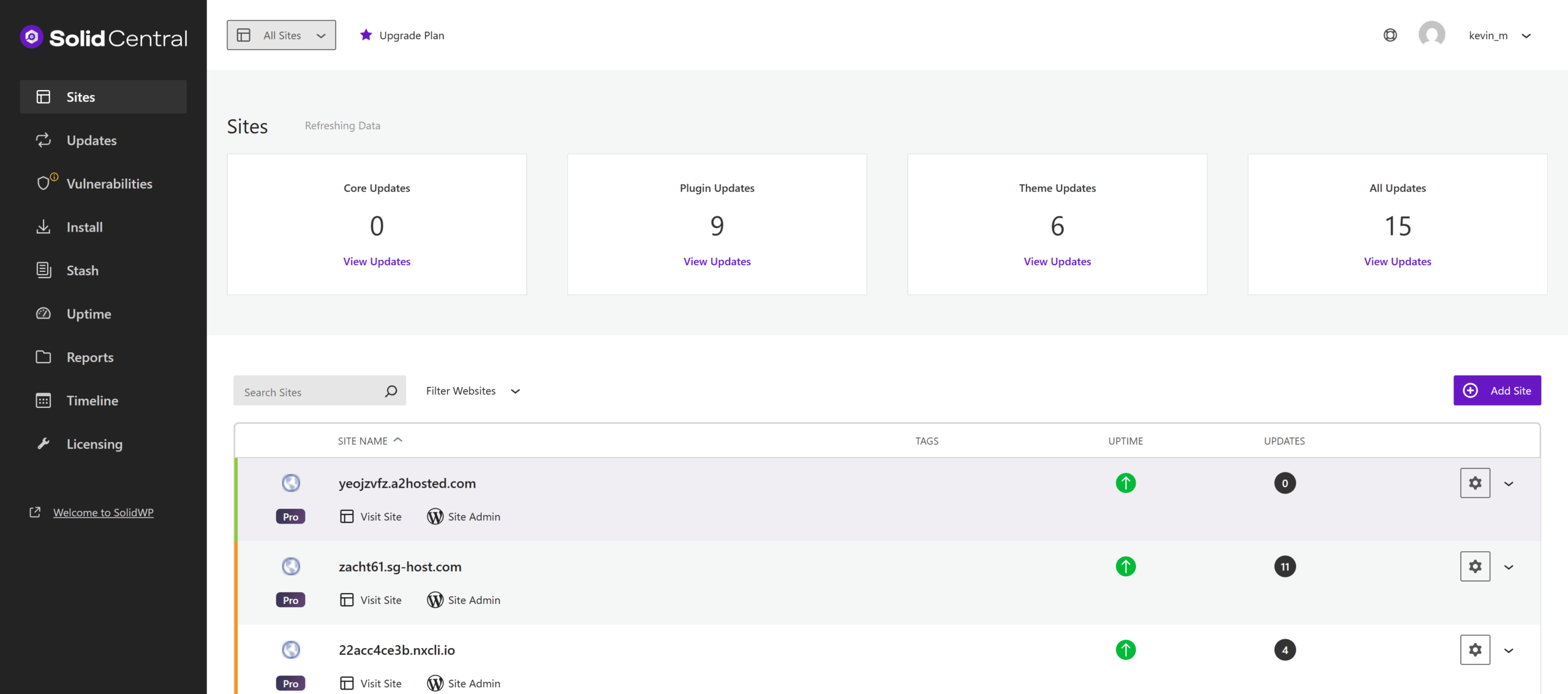
Solid Central connects to every StellarSite automatically, enabling bulk operations across your entire network.
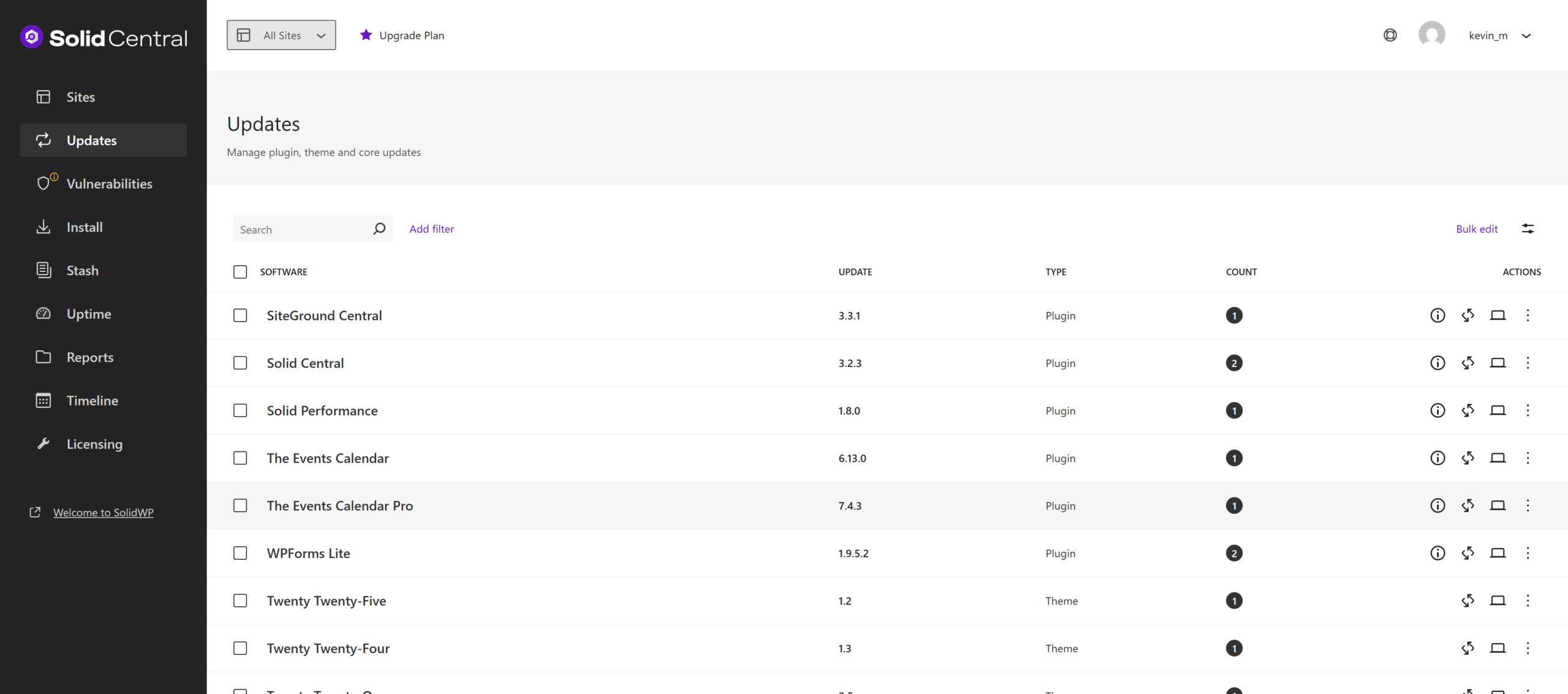
Bulk Updates #
- Plugins, themes, core: Review and apply pending updates in one batch to save time
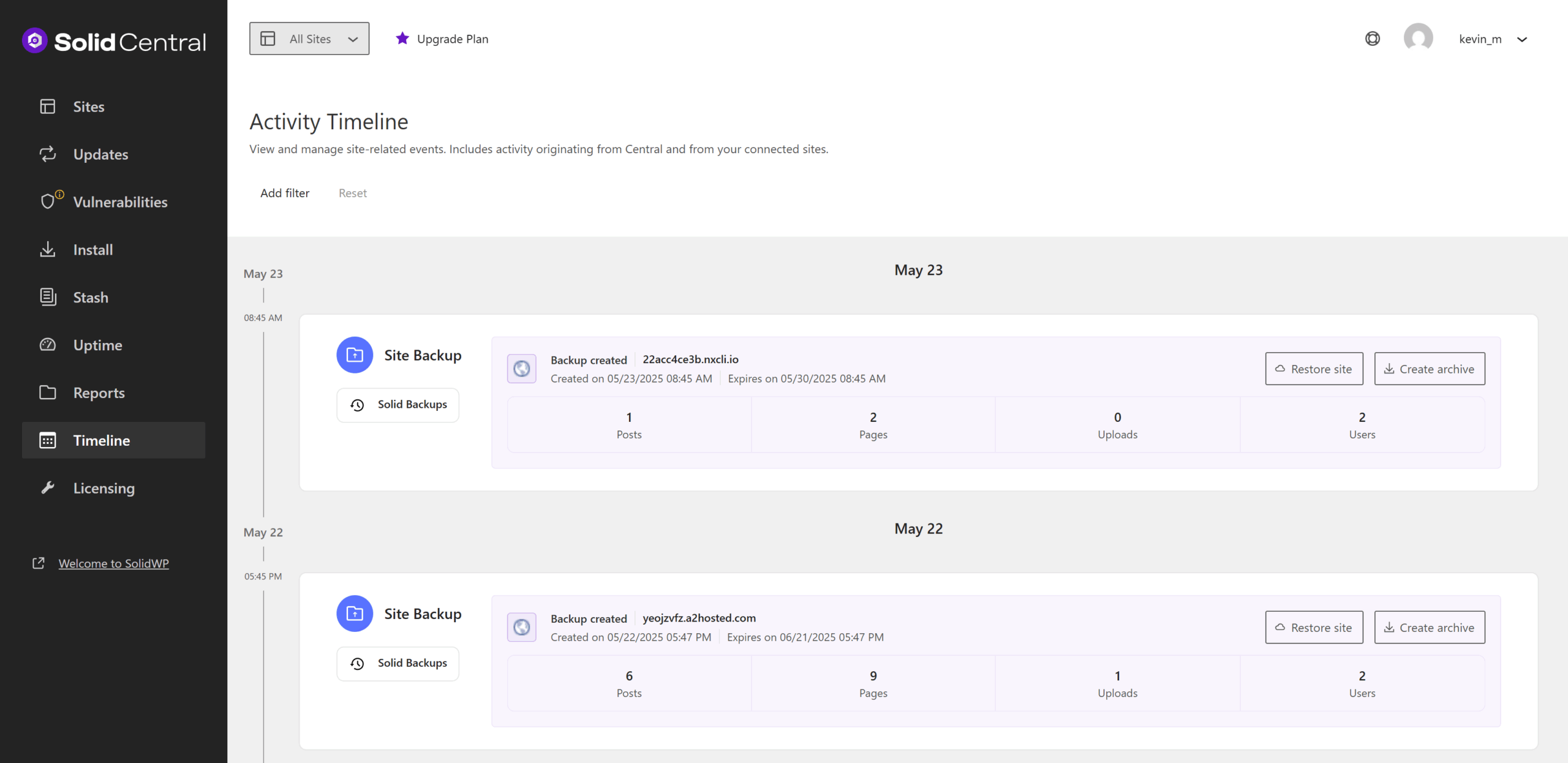
Backup Administration #
- Overview: See last backup timestamps and statuses for all sites.
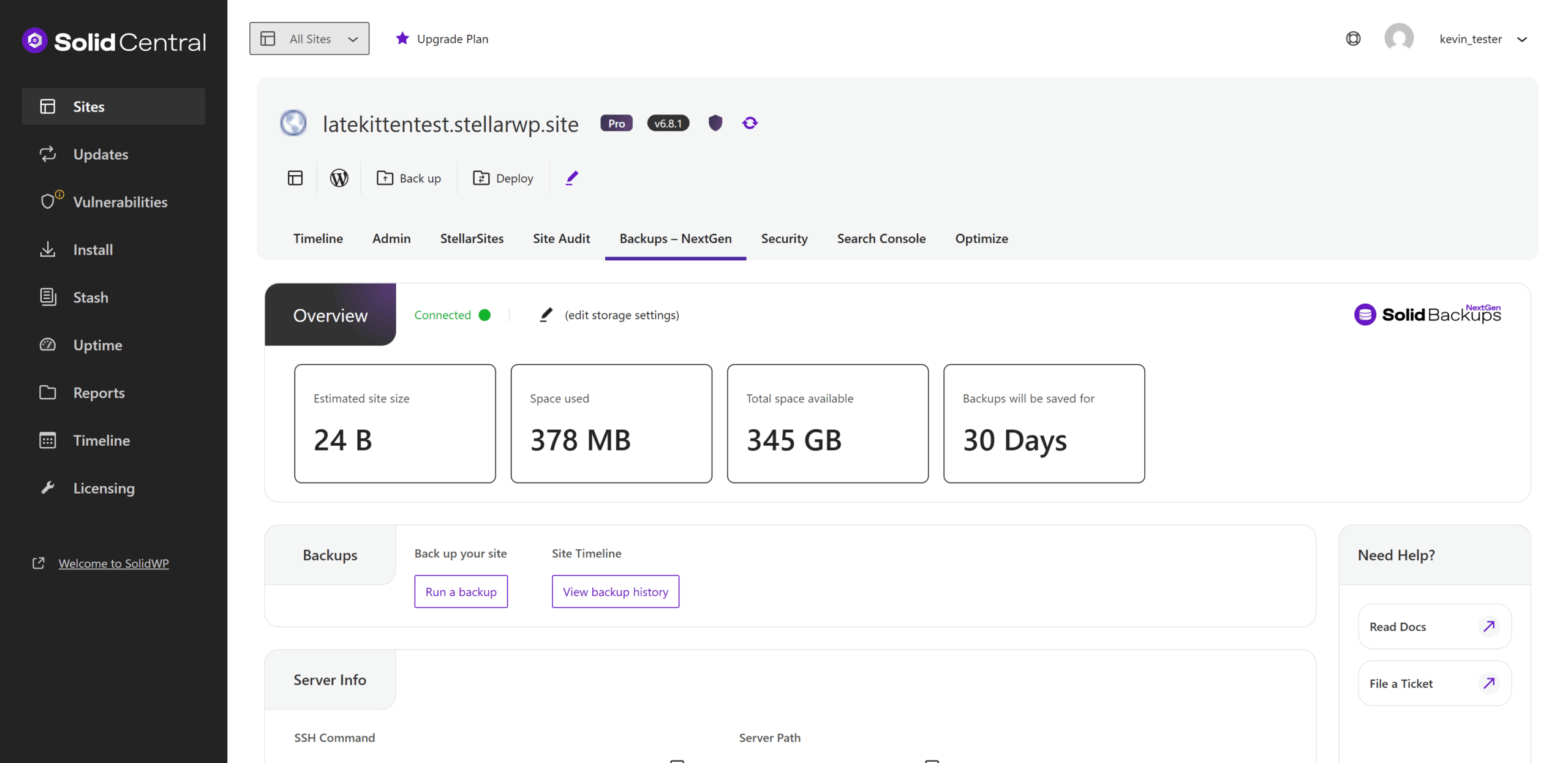
- Manual backups: Trigger on-demand backups before major deployments.
- Restores: Select a restore point and target site without logging into individual dashboards.
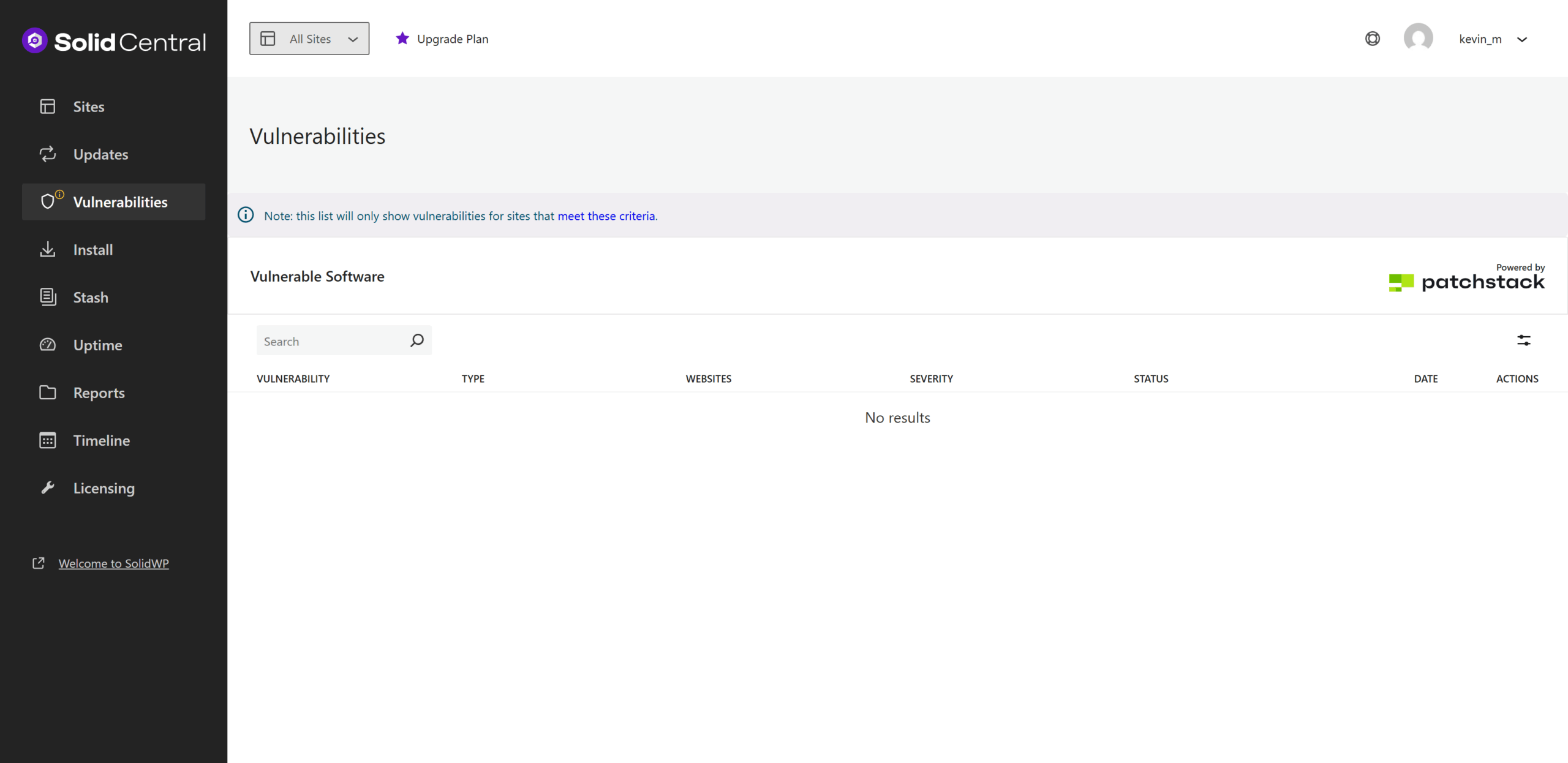
Security Monitoring #
- Vulnerability alerts: Identify outdated software or known exploits across multiple sites.
- Global fixes: Push security patches network-wide in a single operation.
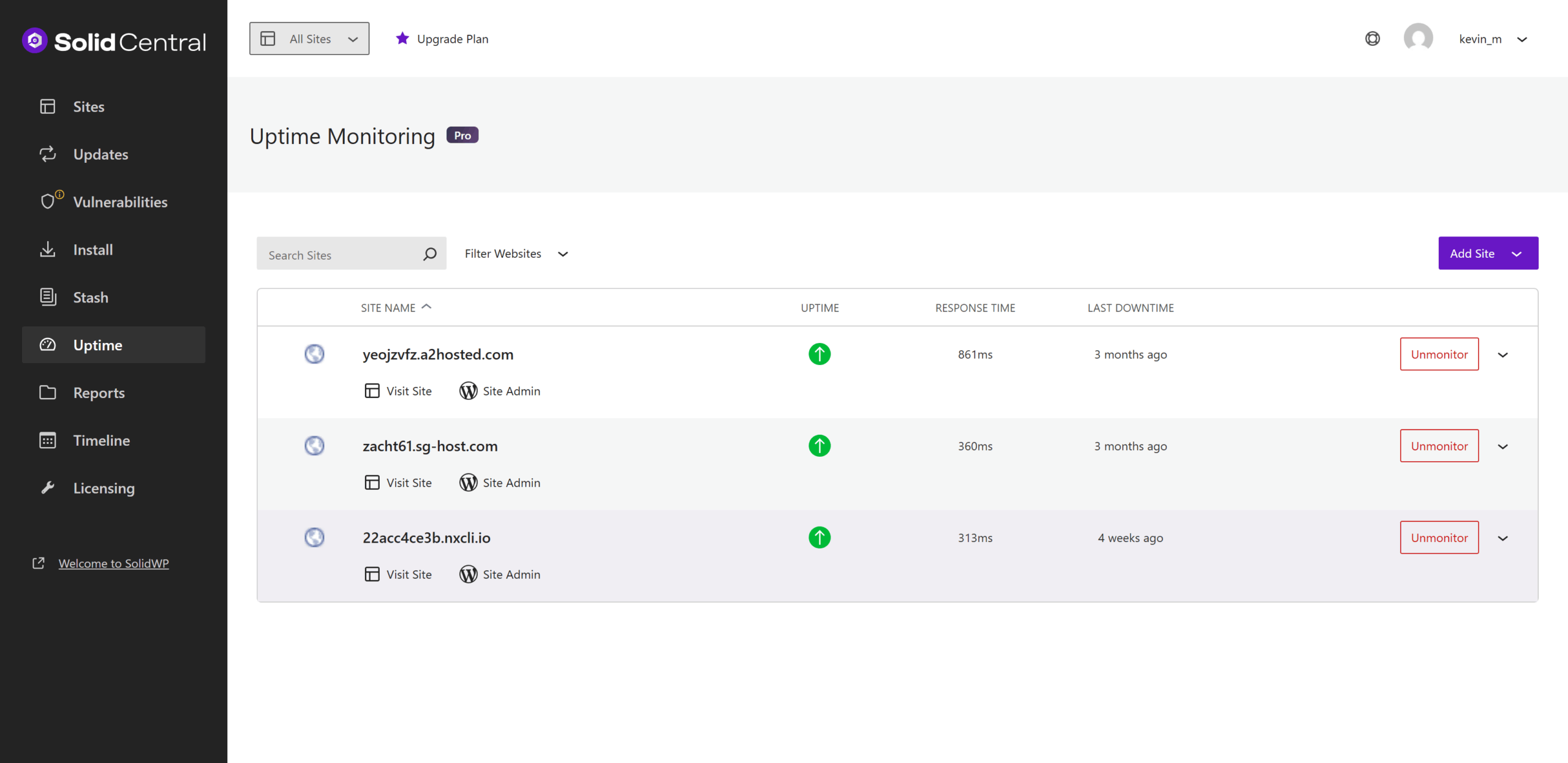
Performance Tracking #
- Uptime checks: Monitor availability over time to spot downtime patterns.
- Speed metrics: Track page-load times and flag sites exceeding performance thresholds.
Best Practices for Multiple Sites #
These are some best practices when you have multiple sites.
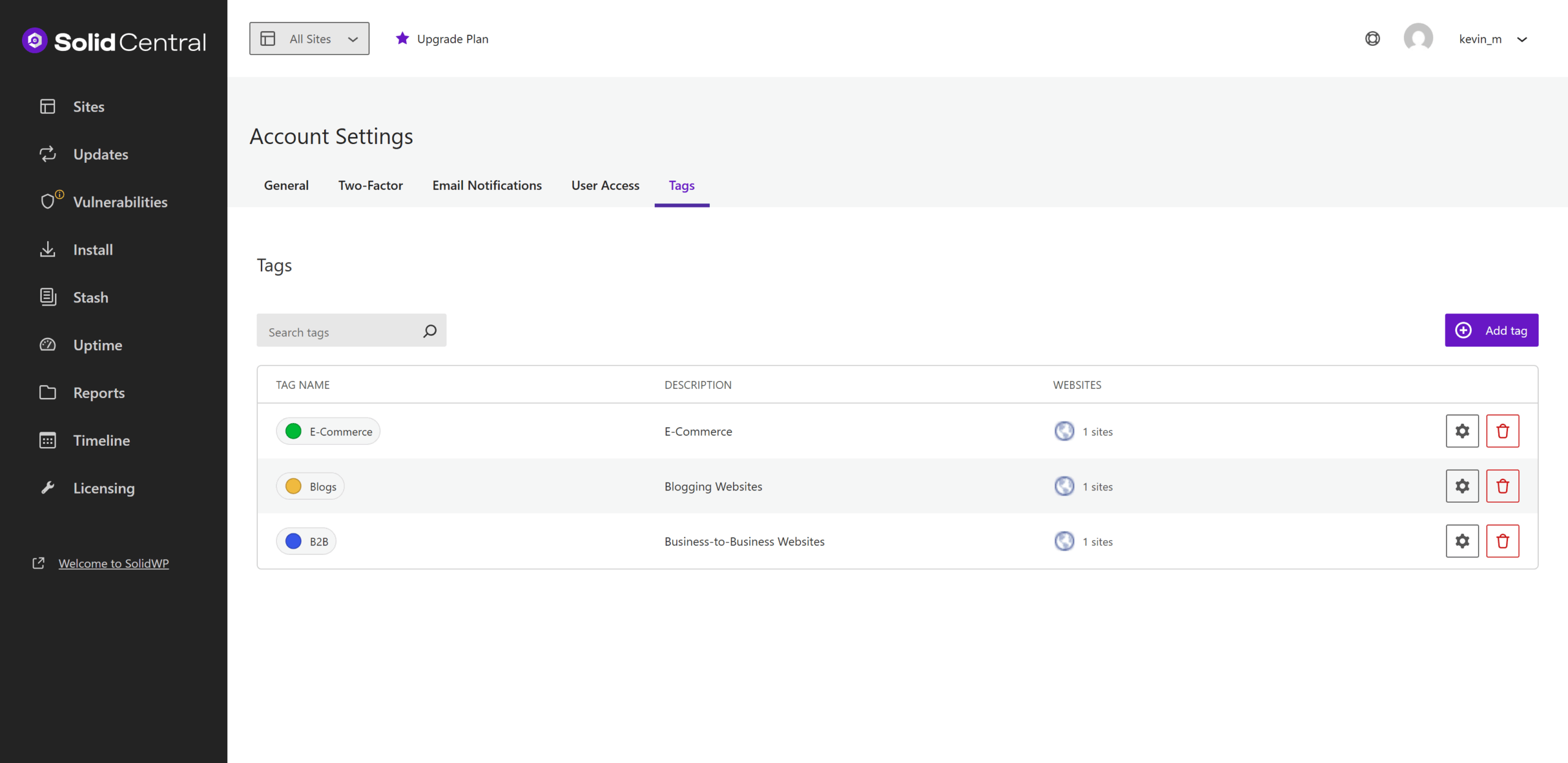
Use Tagging or Grouping Features #
Use Tagging or Grouping Features
Assign meaningful tags (e.g., “eCommerce,” “Blog”) to filter by function quickly.
Backup Before Major Changes #
Even with automated daily backups, run a manual backup before significant upgrades.
Configure Proactive Alerts #
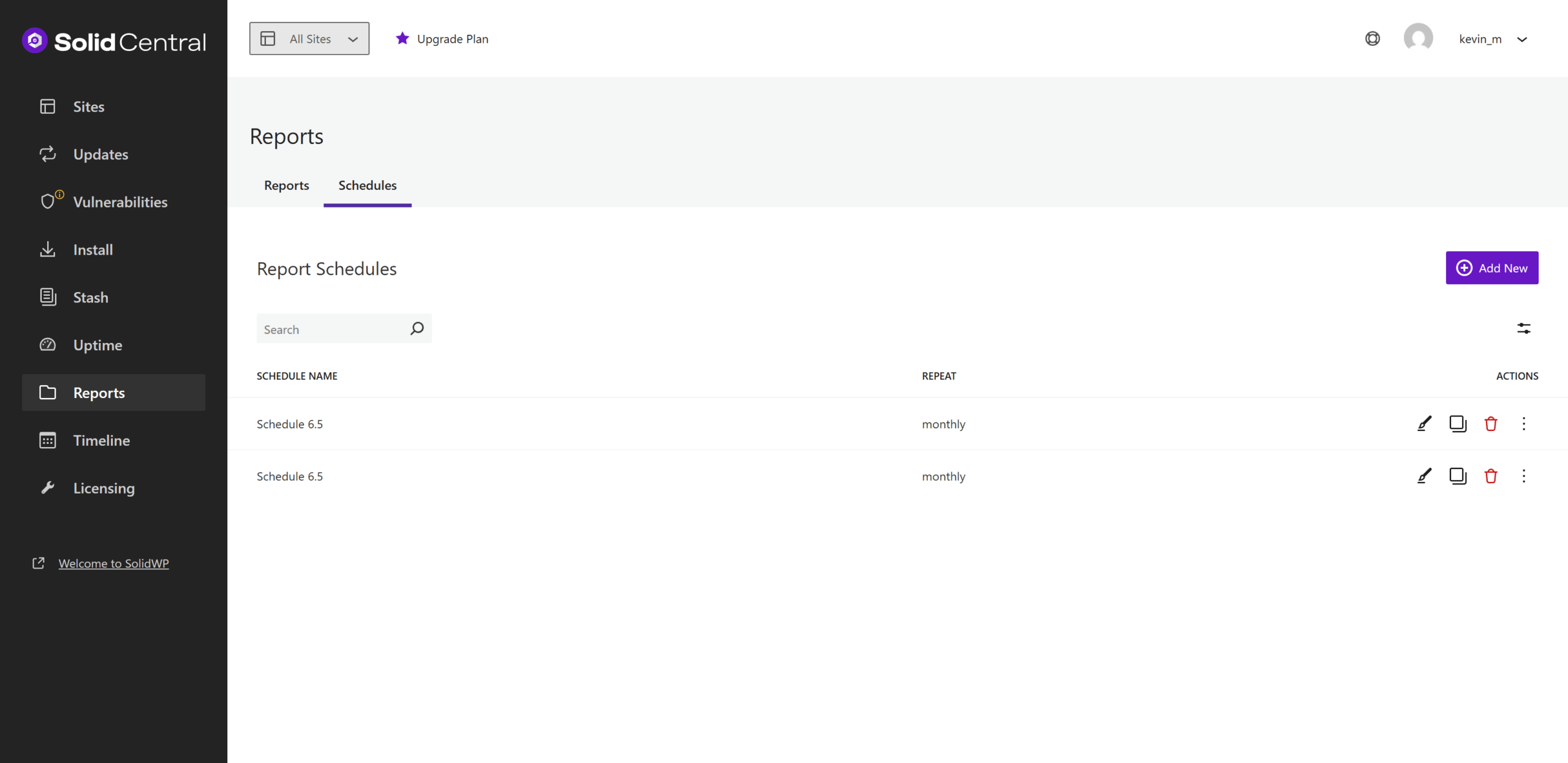
Set downtime monitoring alerts to be notified if your site goes offline. Use scheduled reports to stay informed about security activity, backup status, and update history.
Centralized Credential Management #
Maintain a secure, centralized record of SSH/SFTP and database credentials for rapid incident response.
Conclusion #
Scaling from a single site to a network of StellarSites relies on three pillars: instant visibility, streamlined workflows, and proactive safeguards.
- Instant visibility: Locate and access any site within seconds using the StellarSites Dashboard.
- Streamlined workflows: Eliminate repetitive tasks by running bulk updates, backups, security patches, and performance checks in Solid Central.
- Proactive safeguards: Apply consistent naming conventions or tags, validate changes in staging environments, and configure downtime and performance alerts.
Together, these practices keep administration efficient, reduce manual overhead, and ensure every site performs at its best, no matter how many are under management.


