
Welcome to StellarSites! Whether you’re using our AI-powered setup wizard or customizing everything from scratch, this guide will walk you through how to create your website, what to expect after checkout, and how to manage your new site with ease.
Getting Started with the AI Site Wizard #
The AI Site Wizard is the fastest way to launch your StellarSite. It’s a guided setup experience that helps you define your brand, set your site goals (like selling products, collecting donations, or offering courses), and choose the tone and focus for your site content. You’ll also be able to select imagery from a built-in library powered by Pexels.

Once you complete the wizard, you’ll get a fully functional draft website tailored to your needs. This includes customized copy, royalty-free images, and a layout designed to match your business type and goals. You can review different layout variations, adjust fonts and colors, and make changes before you publish.
If you’d rather start with a blank site or use a classic template instead, you’ll have the option during checkout to remove the AI-generated content from your order.
Creating a Site Without the AI Wizard #
You can skip the AI wizard entirely and still have multiple setup options available after purchase.
To run the AI wizard later, simply log in to your WordPress dashboard and launch the Kadence AI Site Wizard at any time:
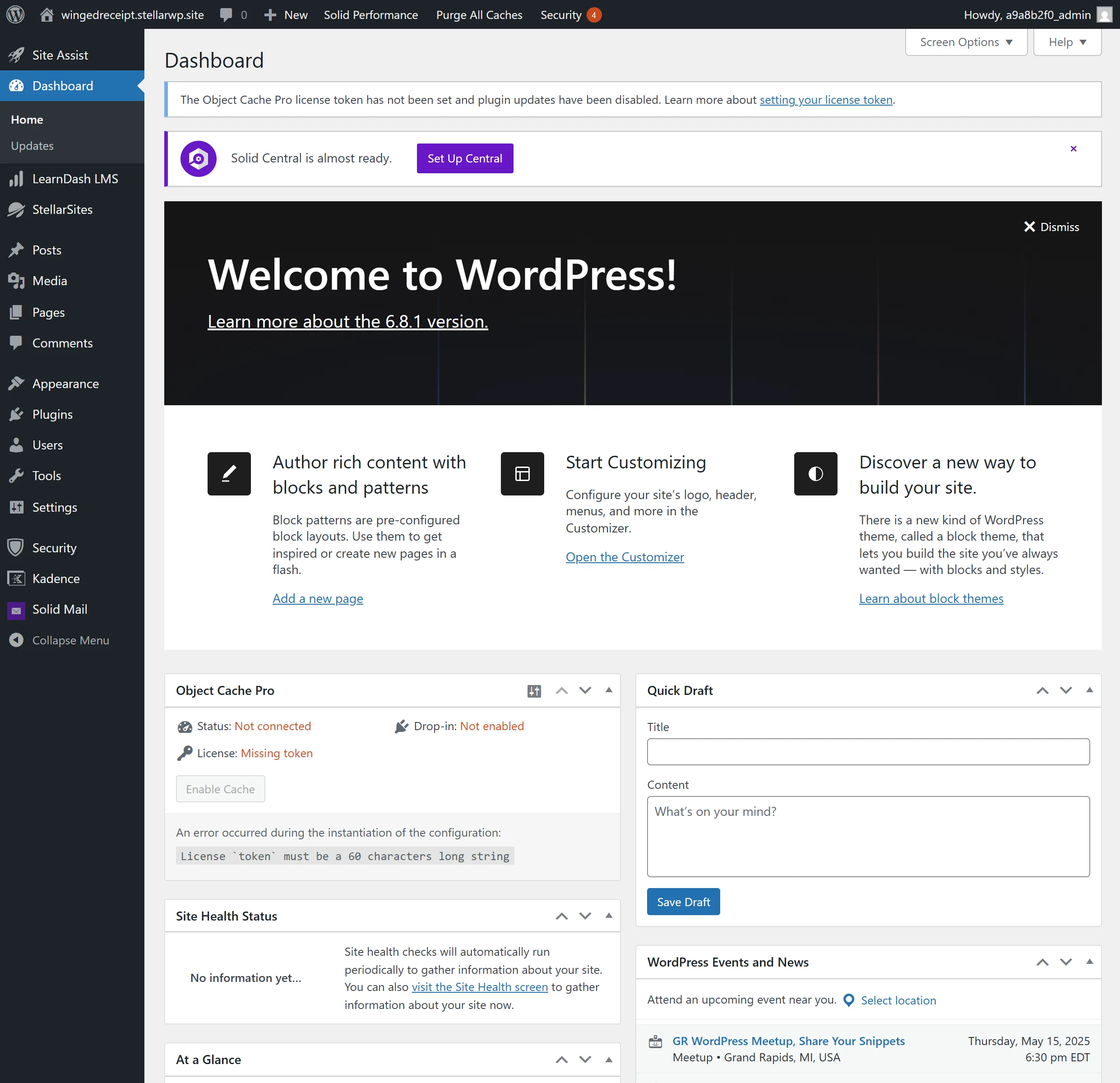
Navigate to your WordPress dashboard → Site Assist → Activate Kadence AI → Set up Site AI Profile

If you prefer a more traditional approach, you can import one of the Kadence Starter Templates directly and customize your site manually with your own content and design preferences.
Understanding Your Two Dashboards #
After signing up, you’ll have access to two separate dashboards—each with its own purpose.
The StellarSites Account Dashboard is where you manage your subscription, billing details, support requests, and plan upgrades. You can log in at stellarwp.com/my-account using your email to request a password-free login link or a passkey if you’ve set one up.
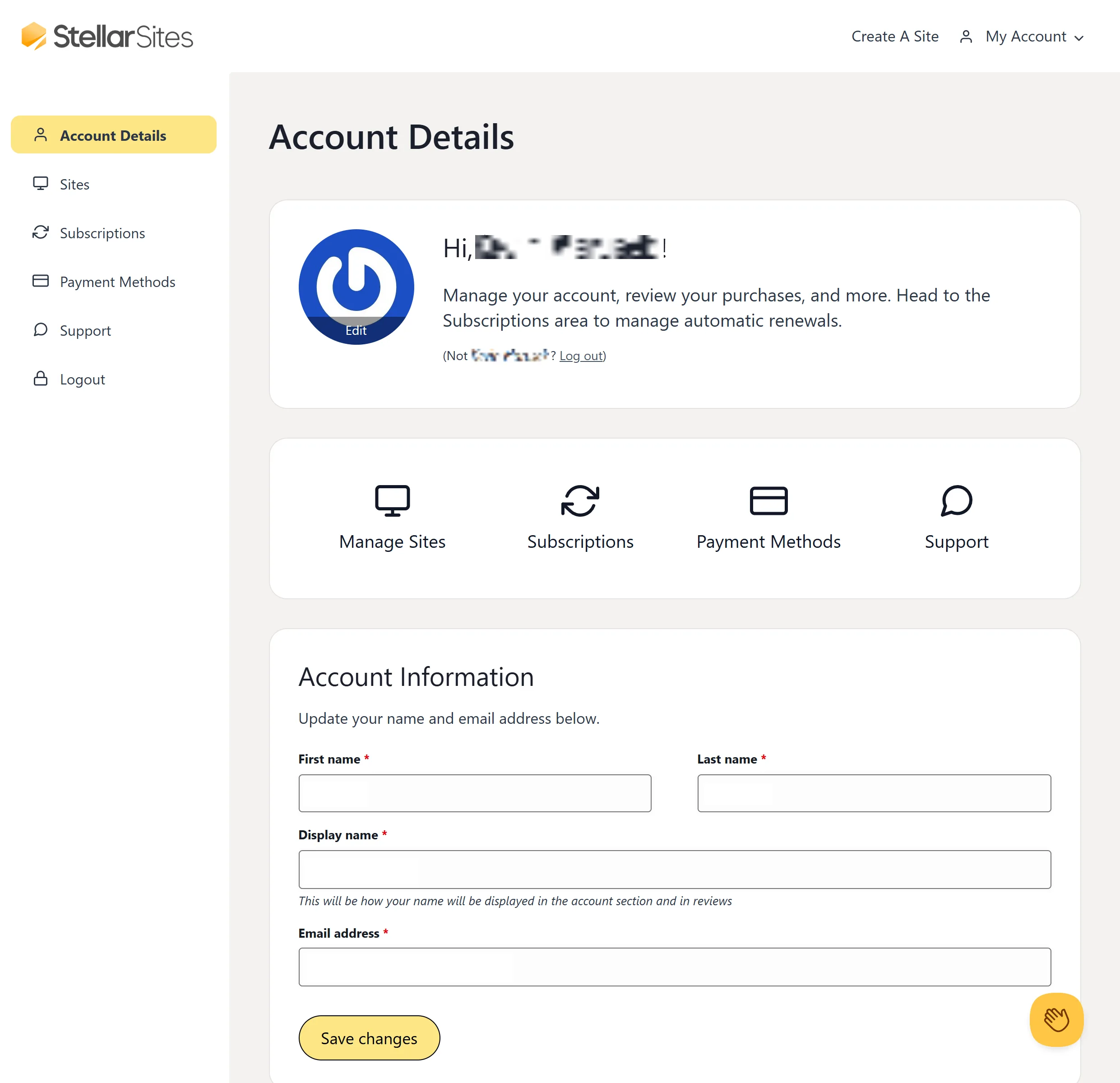
The WordPress Website Dashboard is where you’ll build and manage your actual website. Here, you can edit pages and posts, customize your theme, manage plugins, and configure your settings. You’ll receive a one-time login link after purchase, and you can always return to your site at yourdomain.com/wp-admin. Set a new password under Users > Your Profile once you log in for the first time.
Using Site Assist to Finalize Setup #
After your site is created—whether by AI or via a template—Site Assist will help guide the rest of your setup. It walks you through configuring any included plugins (like WooCommerce, GiveWP, LearnDash, or The Events Calendar), adjusting global styles, and integrating tools like payment gateways or email providers. Think of it as your behind-the-scenes setup assistant, helping ensure your site is launch-ready with no critical steps missed.
Summary #
- Use the AI Site Wizard to create a launch-ready site quickly, with content and design tailored to your goals.
- You can reset your site and start over using the WP Reset plugin.
- If you skip the wizard, you can launch it later or use a Kadence Starter Template.
- Your StellarSites Account Dashboard manages billing and support; your WordPress Dashboard is where you build your site.
- Site Assist helps you configure everything post-launch and ensures no essential setup steps are overlooked.


