
StellarSites automatically backs up your site every day—but sometimes, you want to take control. Maybe you’re about to test a plugin, make big design changes, or just want peace of mind. This guide shows you how to manually create a restore point using Solid Central. It’s quick, visual, and only takes a minute.
Step 1: Open Your Site in Solid Central #
Start from your StellarSites dashboard. Head to Manage Sites and select the site you want to work on—either by clicking the site name or selecting Manage.
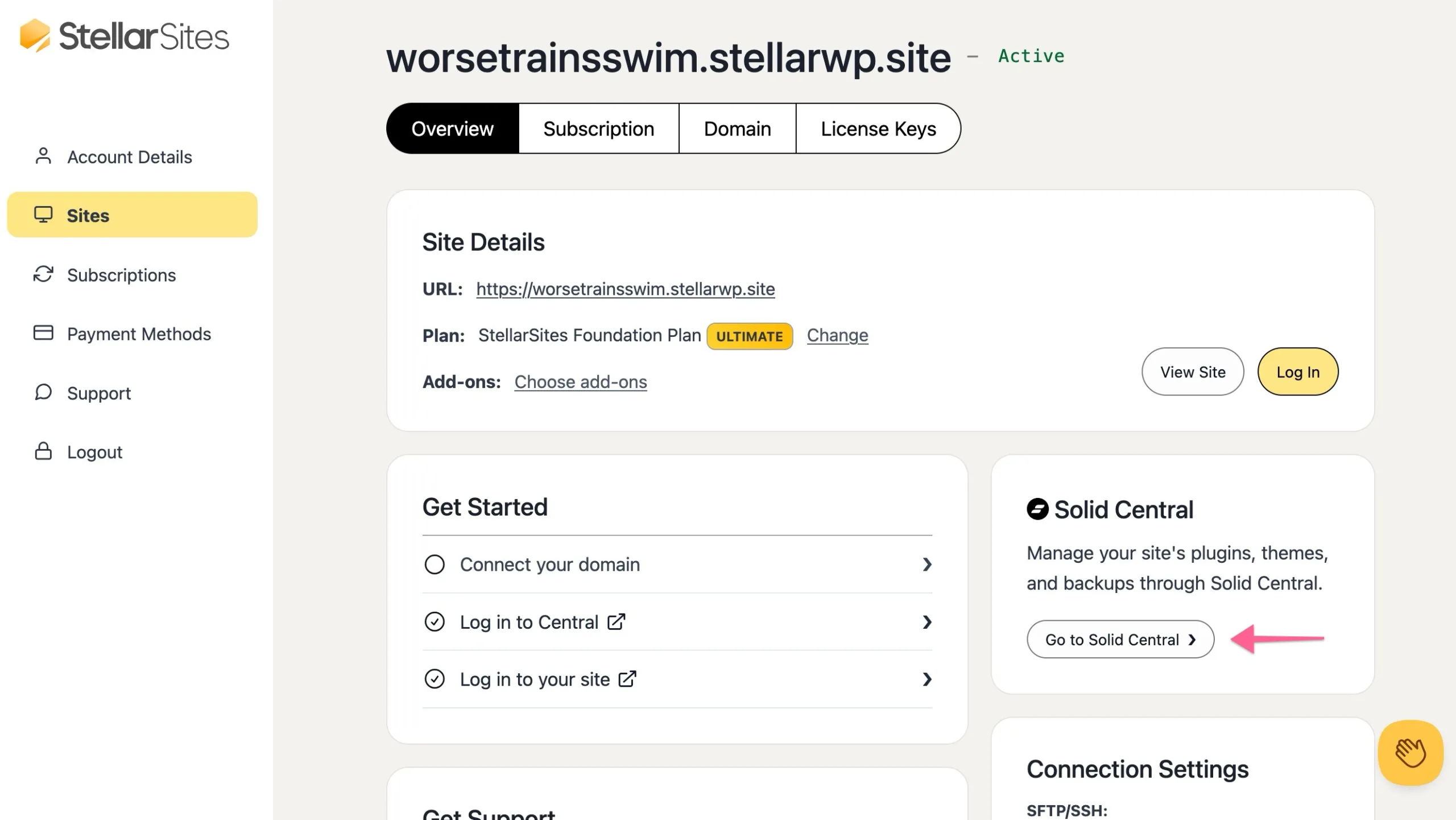
From there, click the “Go to Solid Central” button or “Log in to Central” link to access your Solid Central dashboard.
Step 2: Create a Backup #
In Solid Central, locate your site under the Sites screen and select it to view the admin settings. You’ll see a button labeled Back Up This Site. Click it. When prompted, confirm the action.
Solid Central will immediately begin creating a restore point. You can view the backup’s progress inside the backup card in the Timeline view.

Step 3: What Happens Next #
Solid Central doesn’t create a downloadable ZIP file. Instead, it stores a dynamic restore point inside your StellarSites account. This saves space and keeps things streamlined. When needed, you can always create an archive of your backup (see: Downloading a Backup Archive).
Backups for smaller sites usually finish within seconds. If you don’t see the new backup right away, refresh the timeline by navigating away and coming back.
Step 4: You’re Good to Go #
Once the backup is complete, return to your StellarSites dashboard. You’re now free to update, test, or tweak your site knowing you have a clean rollback point ready.
That’s it! You’ve locked in a manual backup, just in case. Solid’s got your back.


