
Malware on your site? Yeah—it’s the worst. But don’t panic.
StellarSites is designed to keep your site safe with built-in backups, hardened security, and smart defaults. That said, when third-party plugins or weak login practices enter the mix, vulnerabilities can slip through.
Here’s how to regain control fast and prevent future problems.
How Malware Finds Its Way In #
Even with StellarSites’ proactive protections, most malware sneaks in through common cracks outside our ecosystem:
- Outdated or insecure third-party plugins and themes
- Weak passwords or shared login credentials
- Untrusted file uploads
- Unprotected login pages exposed to the public
💡 Pro Tip: Avoiding risky plugins is your first line of defense. See this guide on choosing safe plugins and themes →
Step 1: Roll Back to a Clean Backup #
Your first move is to restore a clean version of your site using Solid Backups, which comes included with every StellarSite. Here’s how:
Restoring a Backup #
To restore a site from backup (sometimes you’ll hear it called “rolling back to a backup”) you can use the same Site Backup card on the Timeline screen and select the “Restore site” option.
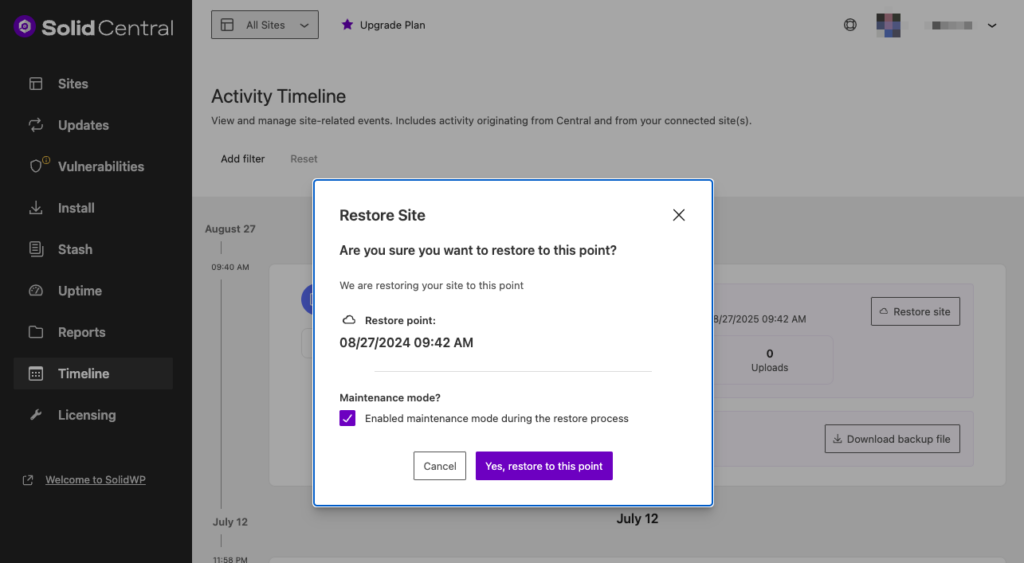
After confirming that you want to roll the site back to the state it was in at the time indicated, the process happens automatically in the background.

You can monitor the process of the Site Restore back on the main timeline screen.
Step 2: Lock It Down with Solid Security Pro #
Once your site is clean, let’s make sure it stays that way.
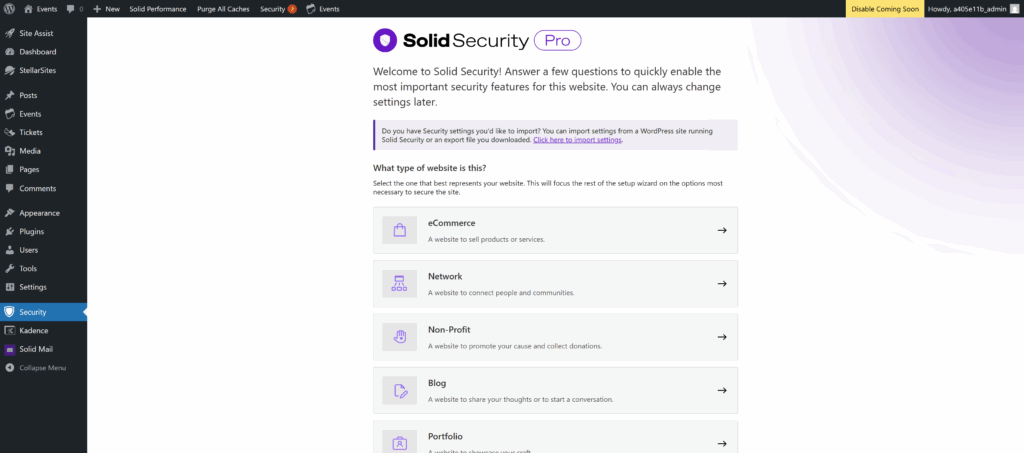
Solid Security Pro is pre-installed and ready to activate. Just turn on key features like:
- ✅ Two-Factor Authentication
- ✅ Brute Force Protection
- ✅ File Change Monitoring
- ✅ Lockouts for Suspicious Behavior
We’ve bundled these for a reason—they stop most attacks before they even start. Follow our Solid Security setup guide to tighten your defenses.
Step 3: Still Seeing Malware? Call in the Pros with Solid Fix #
If malware keeps coming back even after restoring a backup and locking down your site, it’s time to bring in Solid Fix—our hands-on, expert cleanup service.
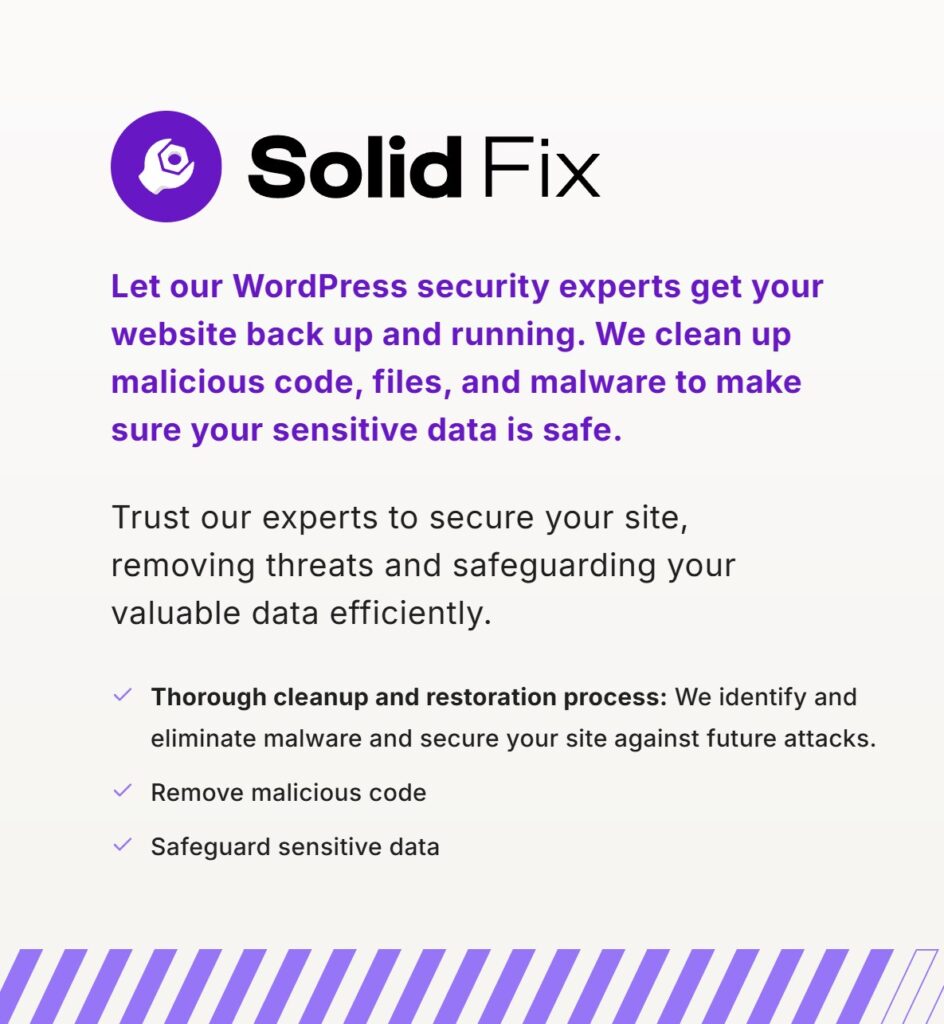
With Solid Fix, you get:
- 🔍 Manual malware scan and removal by real humans
- 🧼 Post-cleanup report with hardening tips
- 🛡 30-day guarantee so you can breathe easier
✅ This is the only cleanup service we recommend for persistent infections. It works—and we stand behind it.


