
KadenceWP is the design engine behind every site on the StellarSites platform, offering a code-free way to make your site truly yours. Whether you launched your site using the AI Site Wizard or chose to start from scratch, Kadence gives you full control over layout, colors, fonts, and content—all without touching a line of code.
This guide walks you through how to customize your site based on your starting point, including how to switch between templates and build your site from the ground up.
Using an AI-Generated Template #
If you built your site using the AI Site builder (also referred to as an AI Wizard!), congratulations—you’re starting with a pre-configured site tailored to your needs. The AI Site builder selected a layout, installed relevant plugins, and populated key content areas based on your answers.
You can begin customizing your AI-powered site right away:
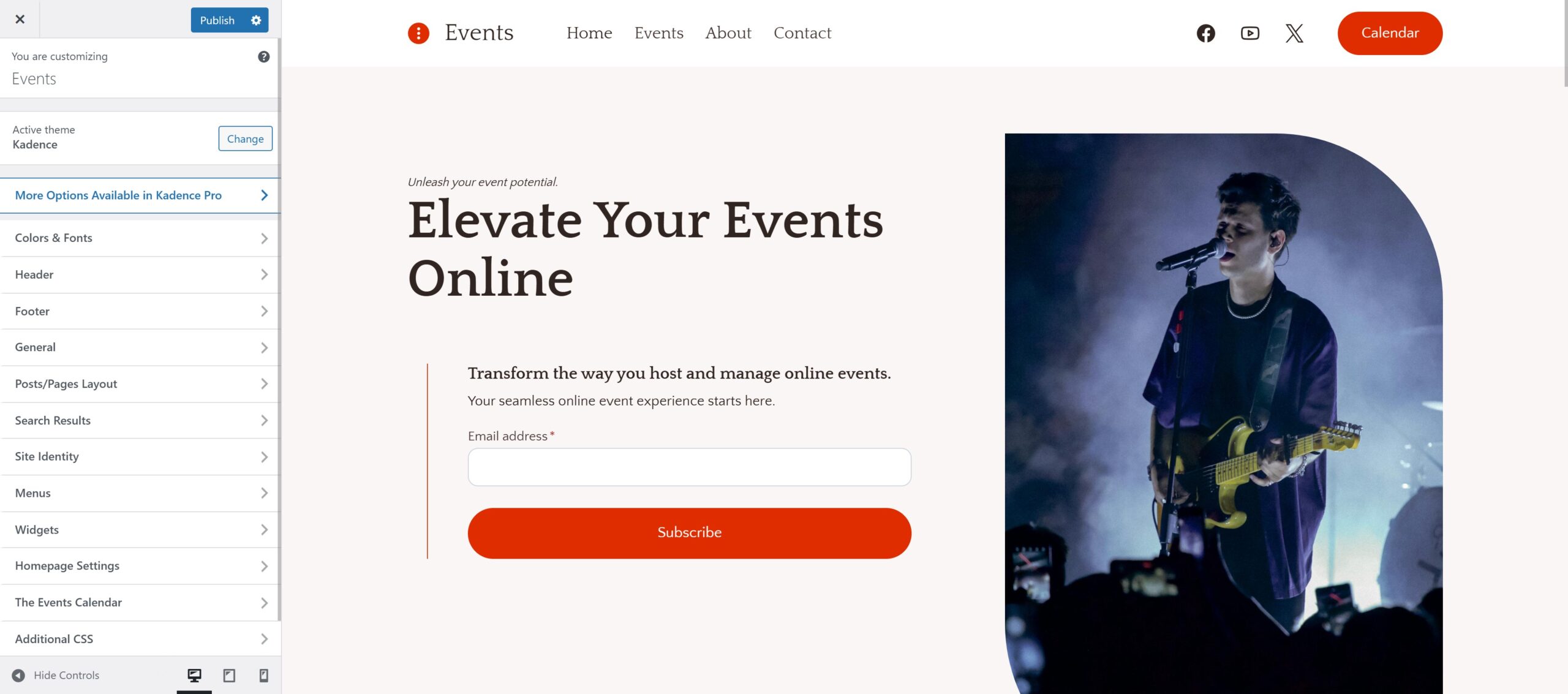
- Colors and Fonts: Go to Appearance > Customize > Colors & Fonts to change your site’s design system.
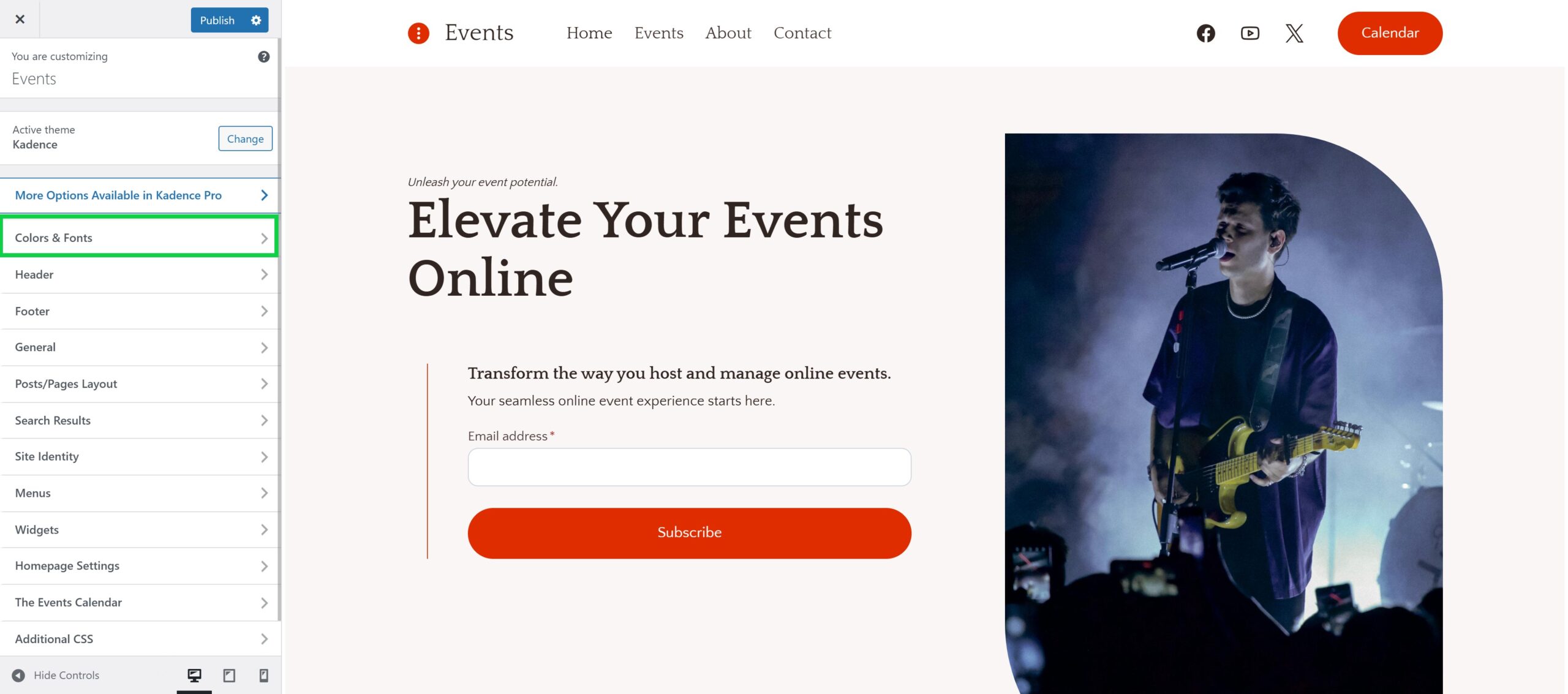
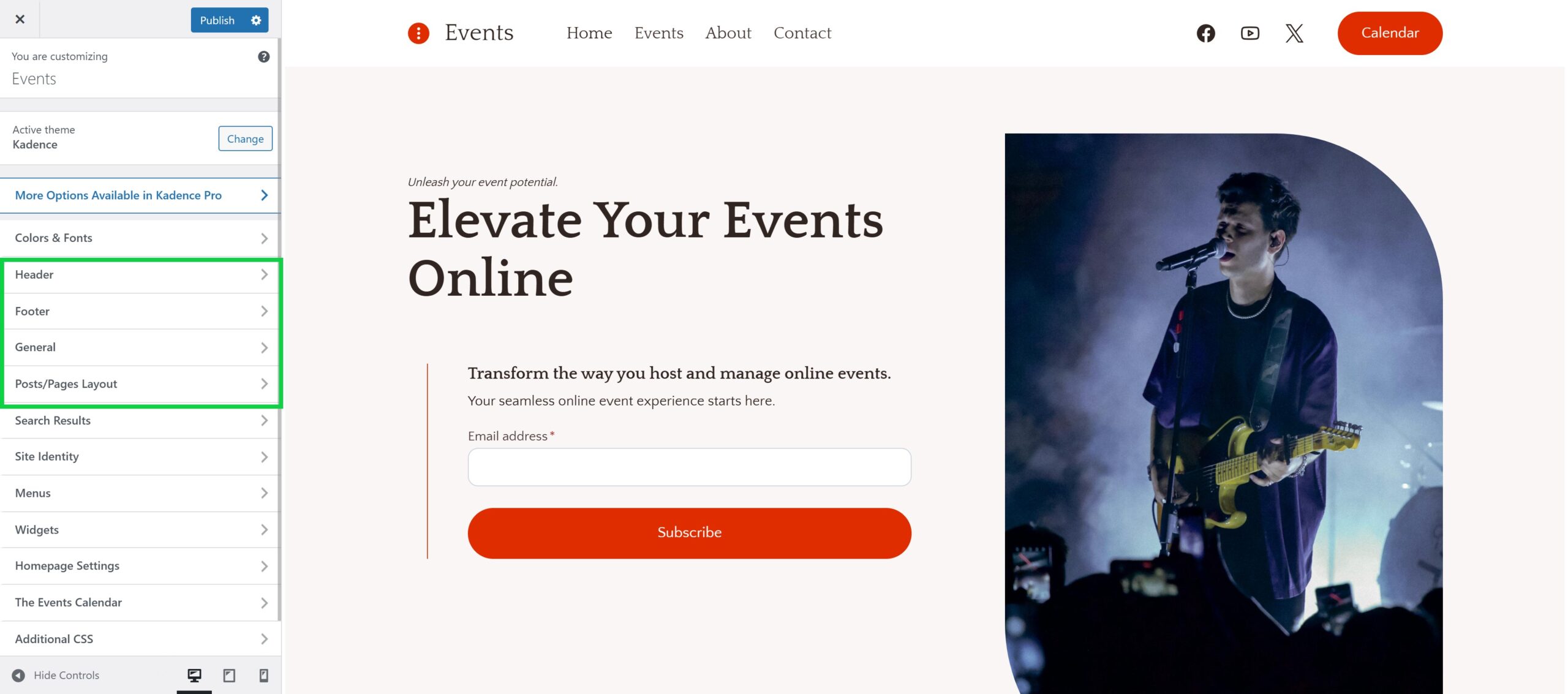
- Layout Adjustments: Modify header, footer, and page layouts using Appearance > Customize.
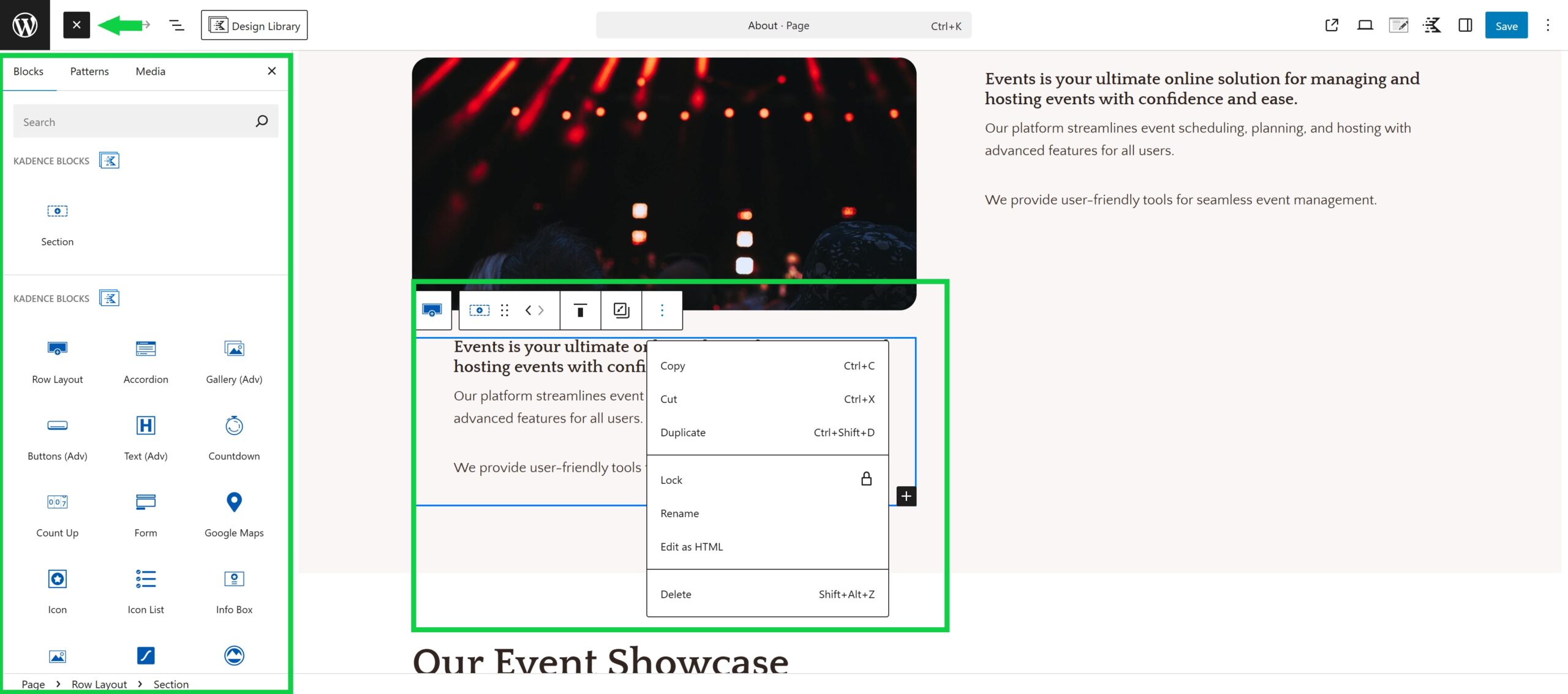
- Content Editing: Use Kadence Blocks within the WordPress editor to update sections, duplicate layouts, or add new pages.
Installing a Starter Template (If You Didn’t Use the AI Site Wizard) #
If you purchased a plan without using the AI Site Wizard, you’ll be greeted with a blank but optimized WordPress site. To jumpstart your build:
- Go to Site Assist > Starter Templates > Use Classic Starter Templates
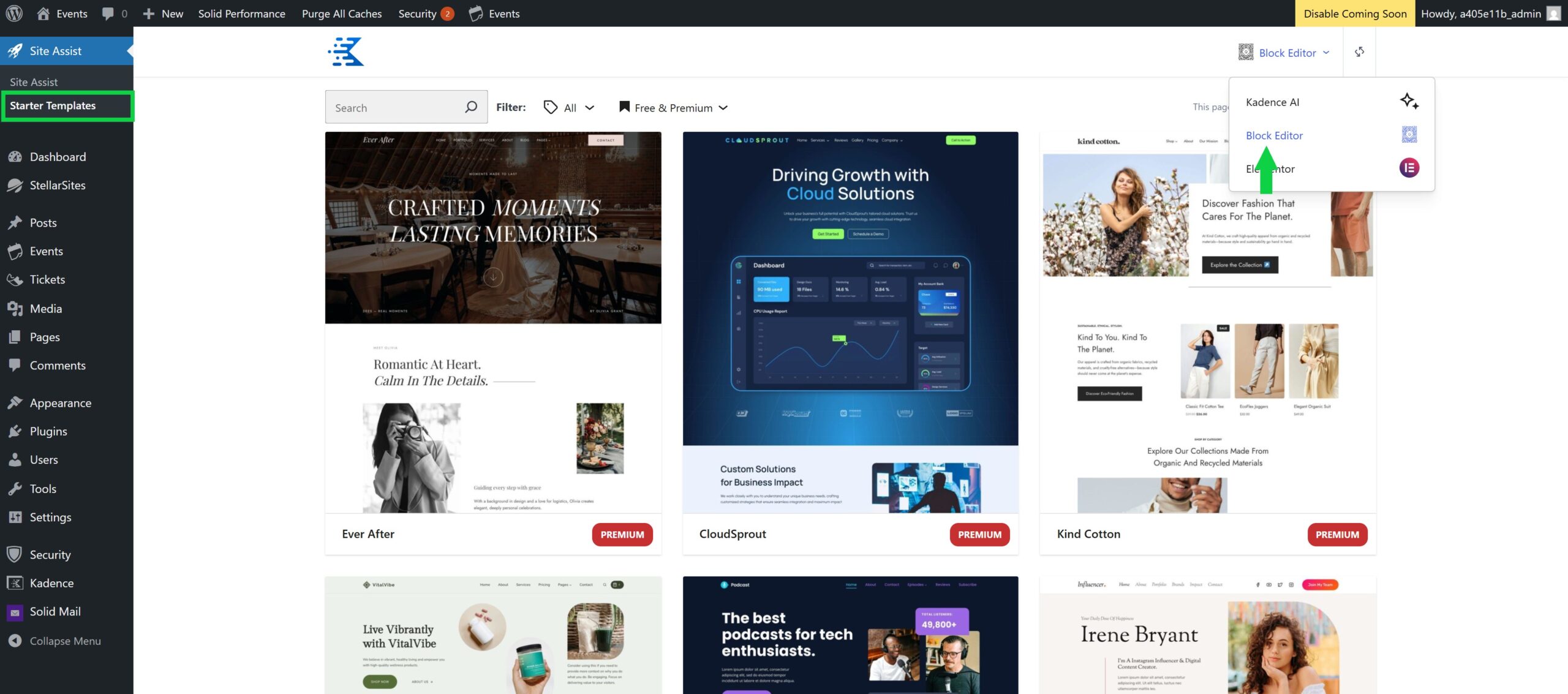
- Browse the curated templates tailored for eCommerce, courses, nonprofits, events, and more.
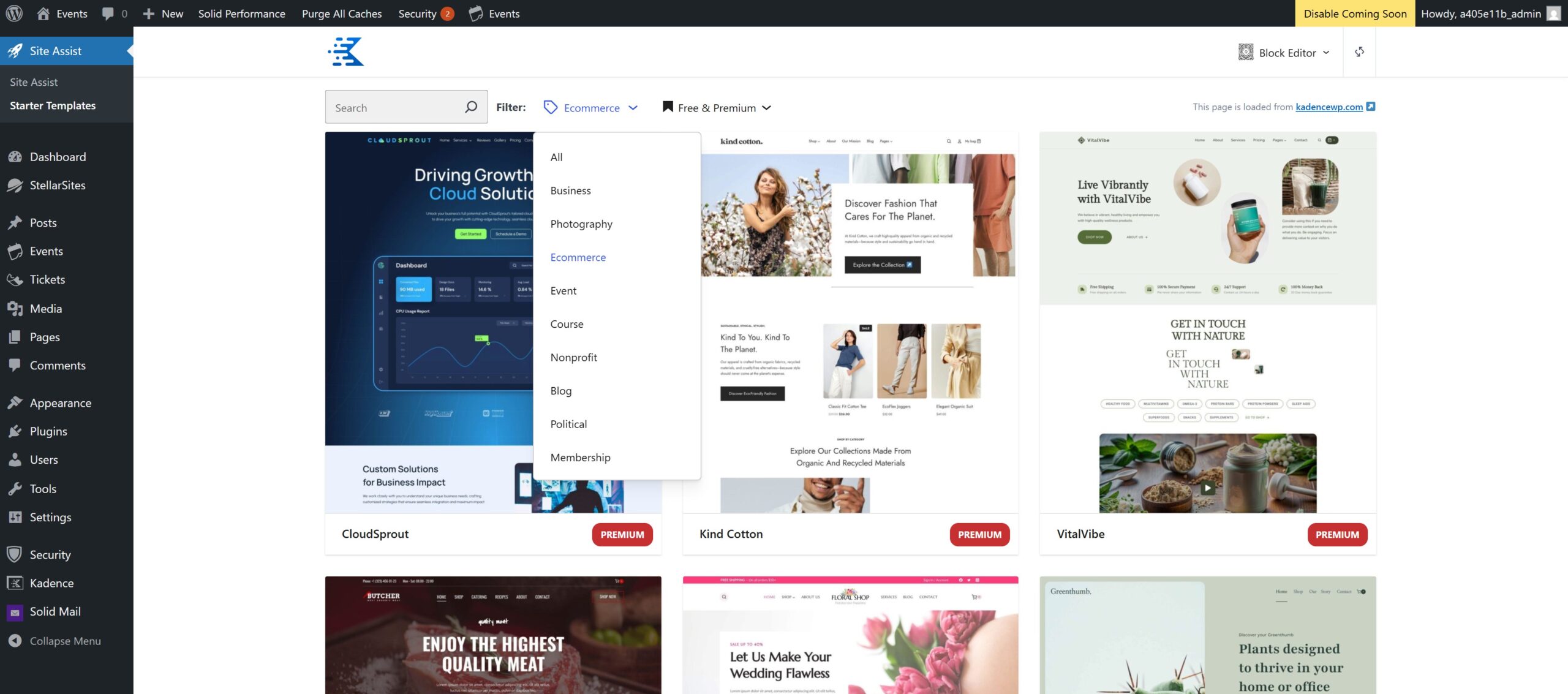
- Select your desired template and apply it to your site.
This installs demo content, layouts, and style settings, all ready for your customization.
Once you’ve selected your Starter Template you can start customizing the site’s general settings (think: fonts, colors, headers, footers) under Appearance > Customize.
Next, choose Edit Page on any of your importer template pages to begin editing the template using Kadence Blocks.
Switching from an AI Template a new Starter Template #
Maybe the AI-generated layout isn’t quite what you had in mind. No problem! You can switch to a new AI Starter Template or Classic Starter Template:
- Go to Appearance > Starter Templates.
- You’ll first see all Kadence AI generated Starter Templates. You can choose from one of these or switch to the “Block Editor” to see Classic Starter Templates.
- Select and apply a new template. Be aware: this will override your current content and design, so back up your site first.
Update the AI Wizard #
If you’ve used the AI wizard but want to update your AI content:
- Go to your WordPress Dashboard > Site Assist
- Click Step 2 under AI Starter Site > Set up Site AI Profile > Set Up
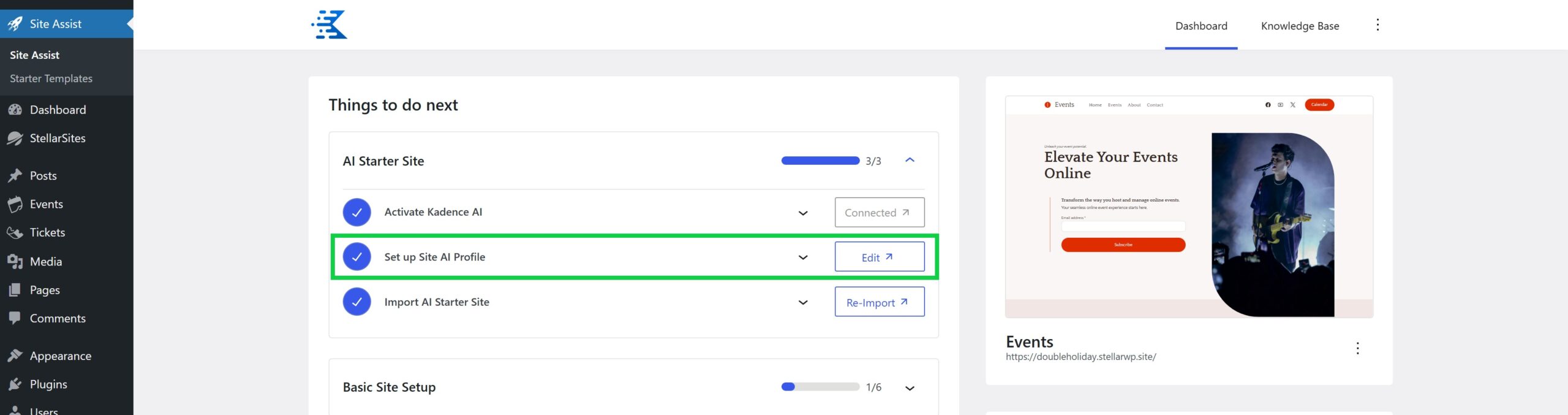
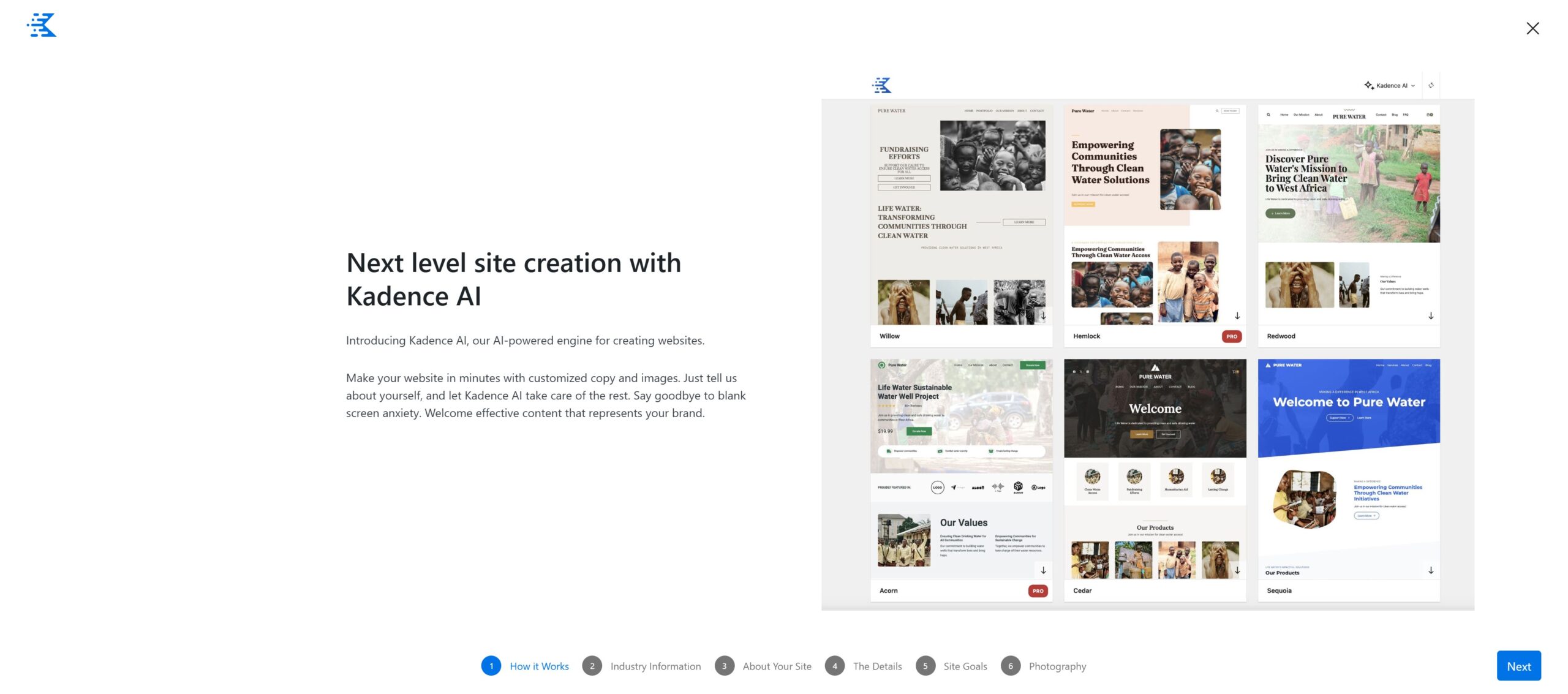
- You’ll see the information you already entered, but you can replace or update each section as you see fit
Refreshing Your AI Build (Start from Scratch) #
Want to start fresh with a new AI-generated site? If you’ve already used the AI wizard, just remove the existing site from your cart before you check out.

If you’ve already checked out but decided you don’t want the AI generated site for some reason, reach out to StellarSites support, and the team will help to get your site back to a blank slate.
NOTE: StellarSites manages licensing for several premium plugins automatically. If you use third-party tools like the WP Reset plugin, those licenses may be wiped out, making it harder to restore your full StellarSites benefits.
No worries, though, our support team is happy to help you restore your site in a way that keeps all your licensed features intact.
Building From Scratch Without a Template #
Prefer to do it all yourself? StellarSites fully supports that, too.
- Start with the blank WordPress install provided.
- Use Kadence Blocks to build layouts from the ground up.
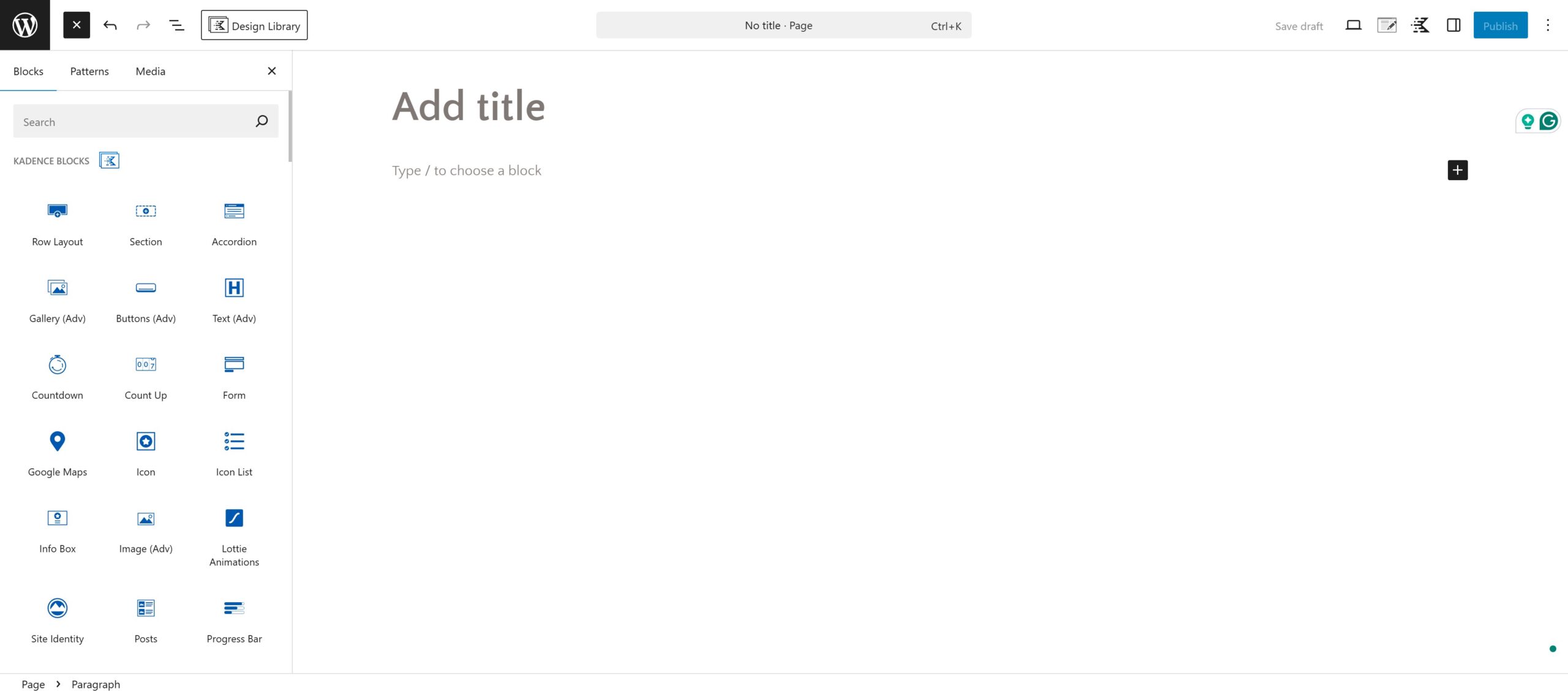
- Customize global styles via Appearance > Customize.
- Add custom pages, headers, and sections using drag-and-drop blocks.
Kadence gives you everything you need to create a professional-grade site from scratch, no design experience required.
Wrapping Up #
No matter how you start, StellarSites and KadenceWP give you unmatched flexibility and control. Whether you stick with your AI-generated layout, choose a Starter Template, or build from a blank canvas, you’ll have a fast, beautiful, and business-ready site that grows with you.
Need help making changes or exploring new layouts? The support team is always here to help.


