
Once you’ve connected a custom domain to StellarSites, the DNS Manager becomes available directly within your StellarSites dashboard. This area provides an easy way for you to manage domain records for email, services, and other integrations.
To see your DNS Manager, log into your StellarSites dashboard and navigate to Sites → Manage → Domain:
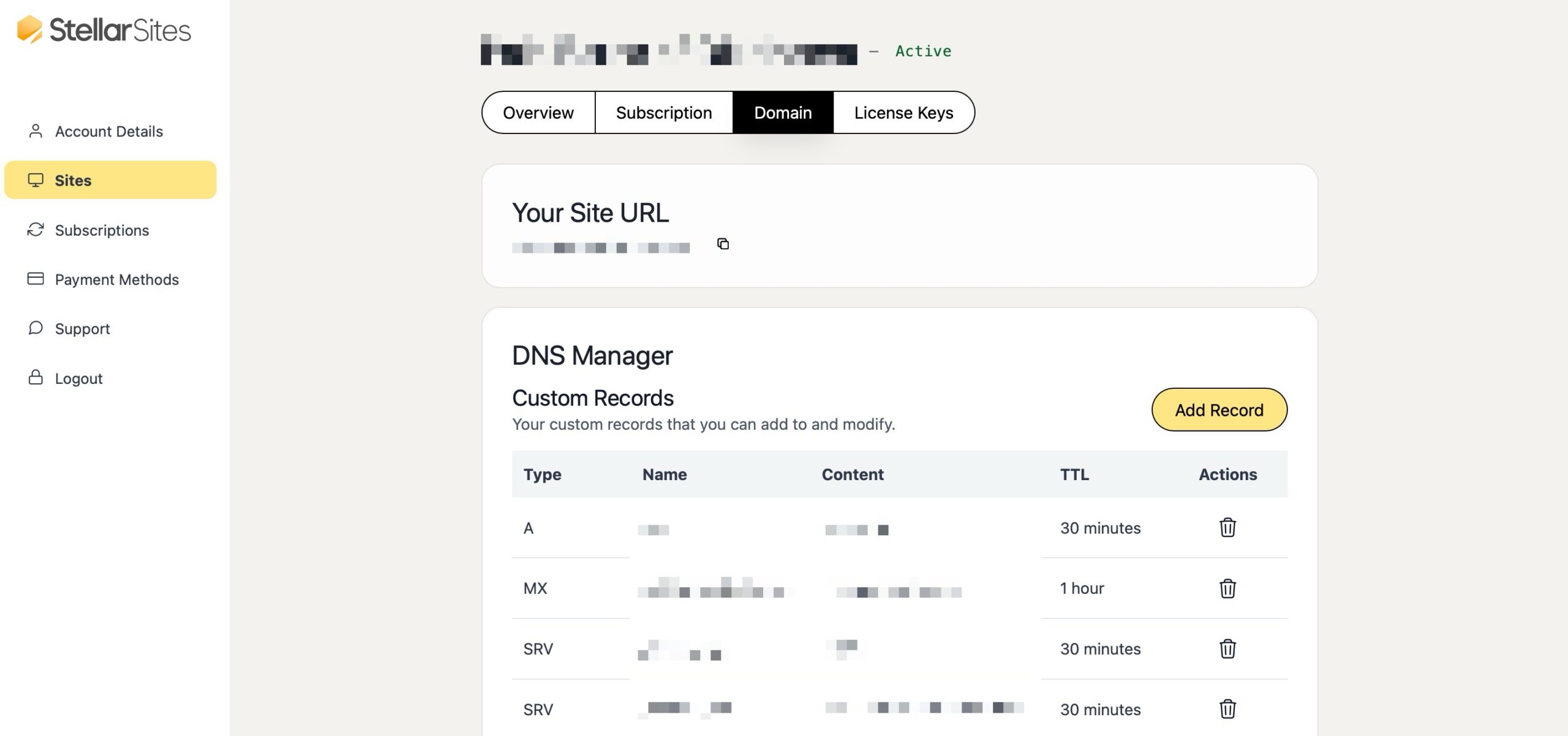
The DNS Manager is divided into two sub-areas:
Custom Records #
The Custom Records area allows you to add and modify DNS entries to suit specific needs, such as setting up email services or verifying third-party tools.
Each type of DNS record has a different job. Here’s a quick rundown of what they do:
- A Record: This is the most basic type of record. It points a specific value like “site.example.com”) to a specific IP address (like “192.168.1.1”). Think of it as the street address for your website on the internet. A stands for “Alias” and StellarSites reserves the “root” alias so that you can’t modify it, but other values can be added as necessary.
- AAAA Record: This is similar to an A record, but it points to a newer type of IP address called an IPv6 address.
- CNAME Record: A CNAME (or Canonical Name) record is used to make one domain name an alias for another. For example, you could use a CNAME to make subsite.example.com point to a separate site hosted elsewhere. StellarSites reserves some CNAME records for key functionalities of your site, but additional ones for custom purposes can be added here.
- MX Record: An MX (or Mail Exchanger) record directs your domain’s email to the servers that will handle it. If you’re using a third-party email service like Google Workspace, you’ll need to set up MX records to make sure your email is delivered correctly.
- TXT Record: A TXT (or Text) record can be used for a variety of purposes. For example, you might use a TXT record to verify that you own your domain, or to set up email authentication to help prevent spam.
- SRV Record: An SRV (or Service) record is used to specify the location of a particular service. For example, some Voice over IP (VoIP) services or instant messaging protocols use SRV records to direct traffic to the correct servers. You can think of it like a more detailed A record that not only provides the location but also information about the port number and priority for that specific service.
Here you can find these sections included:
- Type: Record type (e.g., A, SRV, TXT)
- Name: Subdomain or prefix for the record
- Content: Destination or value for the record
- TTL: Time to Live or how long the record is cached
- Actions: Options to edit or delete a record
The default records you’ll see are:
- A record (mail): Used for pointing mail services to a server IP.
- SRV records: 4 entries used for service-specific configurations.
- TXT records: 3 entries typically used for verification or SPF/DKIM settings.
Additional records can be added to meet specific requirements for your domain.
StellarSites Records #
The StellarSites Records area are the system-required records that ensure your StellarSites website work correctly. These are managed automatically and cannot be changed.
Here you can find these default StellarSites records:
- ALIAS record: Points the apex domain to StellarSites.
- CNAME records: 4 entries for subdomain routing and verification.
- NS records: 4 nameservers used to manage DNS through StellarSites.
How to ensure my email delivery works? #
If your domain’s email deliverability stops working, it may be necessary to re-add the MX records in the Custom Records section of your StellarSites DNS Manager.
Adding Gmail MX Records #
To add your Gmail MX records, follow Google’s guide for up-to-date MX records:
- In your StellarSites DNS Manager Custom Records, select Add Record.
- Enter the following settings:
- Type — MX
- Name — your domain (eg. yoursite.com)
- Priority — 1
- Mail Server — smtp.google.com
- TTL — 1 hour
- Save the records.
You can learn more about this here: Set up MX records for Google Workspace Gmail.


